
I get some version of the same text every August: “Hey, do you know how to get into the school app thing? My kid says it’s broken and I can’t figure out the website.” Almost every time, what they’re actually hunting for is FWISD apps — the ClassLink portal that every Fort Worth ISD student, parent, and staff member is supposed to use for basically everything, from grades to Google Classroom to library databases.
The system itself isn’t really the problem. It’s that nobody explains it anywhere in plain language. FWISD’s own instructions are accurate, but they’re scattered across PDFs, campus sites, and quick-reference sheets that assume you already know what ClassLink is before you even start. So here’s the version I wish someone had handed my family the first time we sat down to log in.
People search for this in a bunch of different ways — “FWISD apps,” “my FWISD apps,” “my apps FWISD,” “FWISD my apps,” even “my FWISD app” when they’re only trying to open one thing. They all lead to the same login screen, so wherever you started from, you’re in the right place.
What FWISD Apps Actually Is
FWISD apps is just the nickname most people use for “My FWISD Portal,” which runs on a single sign-on service called ClassLink. Instead of remembering a separate login for every tool the district uses, you sign into ClassLink once, and it hands you a dashboard of app tiles — click a tile, and you’re in that tool without logging in again.
That matters more in a district this size than it would somewhere small. Fort Worth ISD covers dozens of campuses and tens of thousands of students, so having one front door for all of it isn’t a nice-to-have — it’s the only way the whole system stays manageable for teachers and families alike.
Step-by-Step: How to Log Into the FWISD Apps Portal
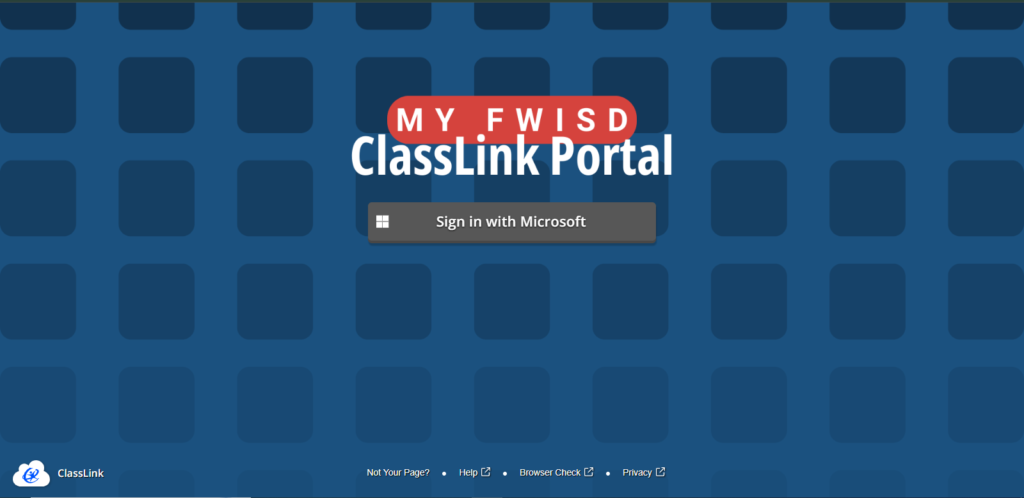
The login process has the same shape no matter who you are: go to the official page, click “Sign in with Microsoft,” and enter your credentials. What changes is the username format, depending on your role.
Start here: go to fwisd.org/myfwisd. That’s the official link, and it redirects straight into the ClassLink launchpad. If you’d rather just search for it, typing “fwisd classlink” or “fwisd.classlink” into Google will land you on the same page. Skip any link that showed up in a random text or email, though — phishing pages that copy the ClassLink login screen do exist, and fwisd.org is the only domain worth trusting with your password.
Students
- Go to fwisd.org/myfwisd.
- Click Sign in with Microsoft.
- Enter your student username — this is where most people get stuck. It’s not just your ID number; it’s the letter S, then your student ID, then @stu.fwisd.org. So if your ID is 010101, you’d type
S010101@stu.fwisd.org. - Enter your password and press Enter.
- If you’re prompted to confirm the sign-in, click “Yes.”
You’ll land on your My Apps screen with tiles for everything your campus and grade level have rostered you into.
Parents
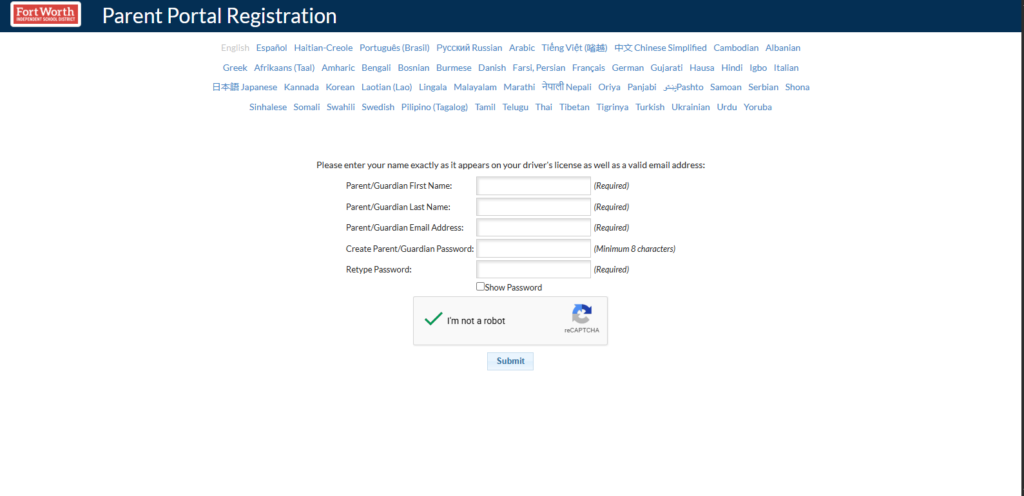
This is the step that trips up more parents than anything else: you don’t log in with your child’s account. Their ClassLink login belongs to them. What you actually want is Focus Parent Portal, a separate system built specifically for grades, attendance, and enrollment.
- Go to the Parent Portal page, either through the Families section of fwisd.org or directly at enrollment.fwisd.org/parentportal.
- If it’s your first time, click “Request Access to Parent Portal” and fill in your information. Your child’s campus has to approve the request, which can take up to five business days.
- Once approved, sign in at fwisd.focusschoolsoftware.com using your own email and password — not your student’s ClassLink login.
Staff & Teachers
Staff follow the same basic steps as students, just with a district employee email instead:
- Go to fwisd.org/myfwisd, or click the ClassLink Portal link from the Employee Resources hub.
- Click Sign in with Microsoft.
- Enter your FWISD email (typically firstname.lastname@fwisd.org) and your network password.
- Your dashboard loads role-based tiles — things like the gradebook side of Focus, Kronos, and curriculum tools, right alongside the same Google apps students use.
Logging Into FWISD Apps From Your Phone
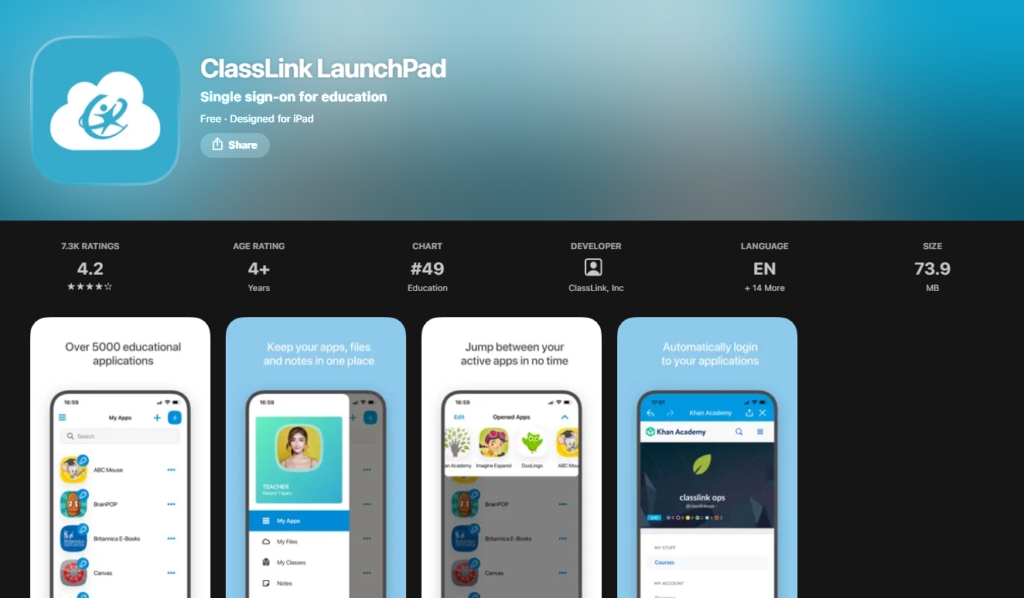
You don’t need a laptop for any of this. The mobile route uses the ClassLink Launchpad app, and honestly, it’s the fastest way to check one thing without booting up a computer.
- Download ClassLink Launchpad from the App Store or Google Play — it’s free either way.
- Open it and search “Ft. Worth,” or tap ClassLink Launchpad directly if that’s the only district option that comes up.
- Tap the Microsoft icon to sign in.
- Enter your username (same S+ID@stu.fwisd.org format for students, or your staff email for employees).
- Enter your password and tap Sign In.
One thing worth knowing before you assume something’s broken: the app shows the same tiles as the browser version, but a few of them — Google Classroom especially — tend to open more reliably in your phone’s own browser or dedicated app rather than staying inside Launchpad. If a tile just spins and does nothing, that’s usually why.
What’s Actually Inside the Portal
Once you’re in, the dashboard fills up with tiles based on your role, grade level, and campus. A handful show up in almost every conversation I have about this system:
- Focus SIS — the district’s student information system, where grades, attendance, and schedules actually live. Students see a simplified version of it; parents get the same data through Focus Parent Portal instead of through ClassLink.
- Google Classroom — FWISD runs on Google Workspace for Education, so signing into your apps dashboard also signs you into your district Google account automatically. One catch worth knowing: students aren’t added to a teacher’s Google Classroom just because they’re enrolled in Focus. A teacher has to add them manually or share a class code first.
- Discovery Education — a media and lesson-resource library teachers pull video content and activities from. It tends to show up as a tile tied to a specific class rather than something students go browsing for on their own.
- SchooLinks — built for older students, covering course selection, college applications, and scholarship searches. It’s listed right alongside the ClassLink portal link on the Students Home page.
There are plenty of other tiles depending on your specific campus, but those four are what come up most.
Common Login Problems & How to Actually Fix Them
Nearly every login issue with this system falls into one of these buckets.
Password not working. Passwords expire periodically, and that’s the single biggest reason logins stop working once the new-school-year rush wears off. Students reset theirs at fwisd.org/studentpasswords. Staff reset through my.fwisd.org. If neither page accepts your reset, the account likely needs a manual unlock from IT rather than another password attempt.
“I’m sure I typed it right and it’s still failing.” Check two things first: a missing “S” at the start of a student ID, and @fwisd.org typed instead of @stu.fwisd.org. Both are easy typos, and the login screen won’t tell you which part is wrong — it just rejects the whole thing.
Apps or tiles that disappeared. This usually means your roster changed or the district updated which apps you have access to. Click your profile icon in the top right, sign all the way out, and sign back in — that forces a refresh instead of showing you a cached tile list.
A tile that won’t open. Try a different browser before assuming it’s broken; Chrome tends to be the most consistent with ClassLink. Clearing cookies helps too, especially on shared school computers where old sessions stack up over time.
Still stuck? Reach the district’s Technology Help Desk at 817-814-4357, Monday through Thursday 7 a.m. to 6 p.m. and Friday 7 a.m. to 5 p.m., or submit a request through SupportHub at supporthub.fwisd.org. Parents dealing with Parent Portal specifically should start with their child’s campus front office instead — they’re the ones who actually approve those accounts.
Related FWISD Links Worth Bookmarking
A few pages that come up constantly alongside the ClassLink portal itself:
- Parent Portal / Enrollment — enrollment.fwisd.org/parentportal, for new registration, returning-student re-enrollment, and Parent Portal account requests.
- Employee Hub — fwisd.org/employees/employee-link-hub, the staff landing page with the ClassLink Portal link, Technology Support Hub, payroll, and benefits information.
- Students Home Page — fwisd.org/students/students-home, the official starting point with the ClassLink login, Student Code of Conduct, and SchooLinks all in one place.
Bookmark whichever one applies to you, and you skip the “wait, where do I even start” step every time after this.
Quick FAQ
Is FWISD apps the same thing as ClassLink? Pretty much — it’s just the everyday name people use for “My FWISD Portal,” which is built on ClassLink’s single sign-on platform underneath. If someone tells you to check “fwisd my apps,” they mean this same dashboard.
Why can’t I use my child’s login as a parent? Because they’re separate systems on purpose. Student accounts through ClassLink are for classwork; Parent Portal through Focus is for grades, attendance, and enrollment, and district privacy rules keep the two apart. A parent account gives you the parent-facing view, not access to your child’s actual student account.
I forgot my username, not my password — now what? Students can find their ID number on a student ID card or by asking the campus front office, since that number is the whole username. Staff can look up their FWISD email through Employee Self Serve if it’s slipped their mind.
Last Thing
Once you’ve logged in correctly one time, FWISD apps stops being a mystery — after that first login, it’s really just a bookmark and a Microsoft sign-in click. Nearly all the friction lives in that very first attempt, usually a username format issue or grabbing the wrong portal for the job. Get past that part, and everything behind it — Focus, Google Classroom, SchooLinks, the rest — works about as smoothly as school software gets.
And if you’ve tried everything here and it’s still not budging, don’t burn another hour guessing. A two-minute call to the Fort Worth ISD Help Desk will get you back in faster than any more troubleshooting will.
Thinking Beyond High School? If you or your older student are already using SchooLinks to plan for college or a first job, having a digital portfolio is one of the easiest ways to stand out from the crowd. You don’t need to know how to code to make a great impression. I recently put together a complete, step-by-step guide on how to build a professional resume website for free using AI—it takes barely any time and looks incredibly impressive to admissions officers and employers alike.
Also Read: iOS App Development Services Guide