
Short answer: The best free video editing app in 2026 depends on what you make. For most creators, CapCut is still the top pick: it’s free, packed with effects, and plain exports carry no watermark as long as you skip “Pro” assets. If you never want to think about watermarks, VN Video Editor is the cleanest free option. For Instagram and Pinterest, InShot is fast and simple, but free exports get a watermark. Editing on a computer? DaVinci Resolve is completely free. Here are my top 5, ranked and reviewed.
| App | Best for | Price | Watermark on free plan | My rating |
|---|---|---|---|---|
| CapCut | All-rounder | Free + paid upgrade | Only with Pro assets | 4.7/5 |
| VN Video Editor | No-watermark mobile editing | Free | No | 4.6/5 |
| InShot | Instagram and Pinterest | Free + paid upgrade | Yes | 4.2/5 |
| DaVinci Resolve | Desktop and iPad | Free + paid upgrade | No | 4.8/5 |
| Canva Video | Quick template edits | Free + paid upgrade | Only with Pro assets | 4.3/5 |
I post on Instagram and Pinterest almost every day. Editing on my phone used to be a nightmare: watermarks on everything, export limits, and clunky apps that fought me on every cut.
So I tried dozens of apps that called themselves the best free video editing apps. Most were trash. A few actually worked.
These five stood out: CapCut, VN Video Editor, InShot, DaVinci Resolve and Canva. I’ll be upfront about each one’s catch, because “free” almost always comes with one.
What to Look for in a Free Video Editing App
Before you download anything, check these six things. They’re the difference between the best free video editing app for you and one you delete after a day.
- No watermarks: read the fine print. Plenty of apps are “watermark-free” until you use one premium sticker.
- No export limits: watch for resolution caps (1080p vs. 4K), length limits, or a cap on how many videos you can export.
- Ease of use: if adding a caption takes six taps, you’ll stop using it. Trust me.
- Compatibility: Android, iPhone, iPad, desktop. And can you move a project between them?
- Export quality: 1080p is plenty for Reels, TikTok and Pinterest. 4K matters more for YouTube.
- Extra features: transitions, effects, royalty-free music and auto captions save a ton of time.
Top 5 Best Free Video Editing Apps – My Picks
I ranked these for everyday creators who edit on a phone, not by raw power. That’s why the most powerful tool here sits at #4.
Prices are what each company lists as of October 2026. App store prices can differ by country.
1. CapCut: Best Overall
What it does: CapCut is a full editor from ByteDance, the company behind TikTok. You get a multi-track timeline, auto captions, templates, effects and a music library on iPhone, Android, desktop and the web.
What I love:
- Auto captions. They save me more time than any other feature on this list.
- A huge library of free transitions, effects and sounds that actually look current.
- Plain exports up to 1080p carry no watermark.
What could be better:
- The “Pro” trap. Pro-tagged effects and templates sit right next to free ones, and using even one puts a watermark on your export.
- Free exports top out at 1080p. 4K needs a paid plan.
- It got pricier in 2026. Pro jumped to $19.99 a month on CapCut’s website, roughly double the old price.
- A 2025 terms update gave ByteDance broad rights to use content you upload. Read it before you upload anything private.
Quick note for US readers: CapCut was briefly pulled from US app stores in January 2025, but it’s back and available in 2026.
Pricing: Free. Standard is about $9.99 a month and removes watermarks on Pro assets. Pro is $19.99 a month or $179.99 a year and adds 4K export and the full AI toolkit.
Best for: Reels, TikTok and YouTube Shorts. For most creators, this is the best free video editing app to start with.
My rating: 4.7/5
2. VN Video Editor: Best for No Watermark
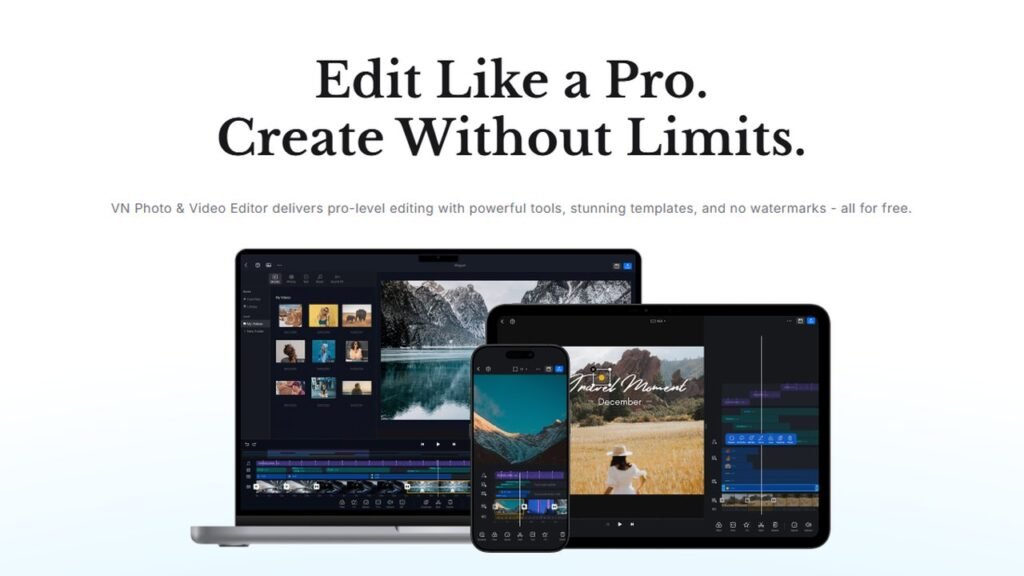
What it does: VN (short for VlogNow) puts a desktop-style, multi-track timeline on your phone. Keyframes, masks, speed control and auto subtitles are all there, on iPhone, Android, Mac and Windows.
What I love:
- No watermark and no ads. VN says it right on its own site, and that held up for me.
- 4K export support without paying.
- Keyframes and multiple tracks make it feel like real editing software, not a toy.
What could be better:
- It takes longer to learn than CapCut or InShot. Give it an evening.
- Fewer trendy templates and effects than CapCut.
- I’d stick to the phone app. The desktop version gets mixed reviews.
Pricing: Free. The core editor costs nothing, though you may see optional paid extras.
Best for: Creators who refuse to deal with watermarks. If “no logo on my video” is your #1 rule, VN is the best free video editing app here.
My rating: 4.6/5
3. InShot: Best for Instagram and Pinterest
What it does: InShot is a simple editor built for social posts. Trim, crop, resize for Reels, Stories or square posts, then add music, text and stickers in a few taps.
What I love:
- It’s the fastest way I’ve found to go from a raw clip to a posted Reel.
- Resizing for different platforms takes one tap.
- Free exports go up to 4K.
What could be better:
- Every free export gets an InShot watermark. The app sometimes lets you remove it by watching an ad, but it comes back on your next project.
- Buying “Remove ads” doesn’t remove the watermark. Only Pro does.
- Fewer advanced tools than VN or CapCut.
Pricing: Free. InShot Pro runs roughly $3.99 a month, $17.99 a year, or about $39.99 for lifetime access in the US, though it varies by region.
Best for: Quick Reels and Pins. It’s the best free video editing app for Instagram if you can live with a small logo or pay a few dollars. It also works great as a free video editing app for Pinterest.
The same developer makes YouCut, which is worth a look if the watermark bugs you.
My rating: 4.2/5
4. DaVinci Resolve: Best Free Desktop Editor
What it does: DaVinci Resolve from Blackmagic Design is the editor real film and TV crews use. Editing, color grading, visual effects and audio mixing all live in one app on Windows, Mac and Linux, with a free iPad version too.
What I love:
- The free version has no watermark, no time limit and no subscription.
- It exports up to 4K at 60fps without paying a cent.
- Its color tools are the industry standard. Your footage will look better.
What could be better:
- Steep learning curve. Expect to watch tutorials.
- It needs a decent computer, and an old laptop will struggle.
- No phone app. That’s the only reason it’s #4 and not #1.
Pricing: Free. DaVinci Resolve Studio is a one-time $295 purchase, no subscription. The iPad Studio upgrade is a separate $94.99.
Best for: Long YouTube videos and professional projects. If you edit on a laptop, this is the best free video editor you can get.
My rating: 4.8/5
5. Canva Video: Best for Quick Edits
What it does: Canva’s video editor turns templates into polished clips with animated text, stickers and your brand fonts. It works on the web, iPhone, Android and desktop.
What I love:
- Thousands of video templates. A promo or Pin takes minutes.
- I already make my blog graphics in Canva, so keeping video in the same place saves me time. (If you edit photos more than videos, I’ve rounded up the best apps for editing photos too.)
- Free exports go up to 1080p with no watermark, as long as you only use free elements.
What could be better:
- Pro elements show up in the same search results as free ones. Use one and your export gets watermarked.
- The timeline is basic. Don’t expect precise multi-track editing.
- Free AI video features are very limited.
Pricing: Free. Canva Pro was listed at $18 a month or $180 a year in the US in September 2026, and prices have shifted this year, so check before you buy.
Best for: Pinterest video pins, quick promos and anyone who already lives in Canva.
My rating: 4.3/5
Honorable mentions
Instagram’s own free Edits app is worth trying if you only post Reels. YouCut is a solid backup if you want something lighter than VN.
Best Free Video Editing App Comparison Table
Here’s how all five stack up side by side, so you can spot the best free video editing app for your setup in ten seconds.
| App | Platform | Watermark on free plan | Free export limit | Best for |
|---|---|---|---|---|
| CapCut | iPhone, Android, Windows, Mac, web | Only with Pro assets | 1080p | All-rounder |
| VN Video Editor | iPhone, Android, Mac, Windows | No | Up to 4K | Pro-style mobile editing |
| InShot | iPhone, Android | Yes | Up to 4K | Instagram and Pinterest |
| DaVinci Resolve | Windows, Mac, Linux, iPad | No | Up to 4K at 60fps | Professional editing |
| Canva Video | Web, iPhone, Android, desktop | Only with Pro assets | 1080p | Quick social edits |
How to Choose the Best Free Video Editing App for You
Easy rule: edit on a phone? Start with CapCut or VN. Edit on a laptop? Go with DaVinci Resolve. Then narrow it down by platform:
- Instagram Reels: CapCut for effects, InShot for speed. Use VN if you hate watermarks.
- Pinterest videos: InShot or Canva Video. Canva’s templates are made for pins.
- YouTube: CapCut for Shorts, DaVinci Resolve for long videos.
- Professional projects: DaVinci Resolve. Nothing free comes close.
- Quick edits: Canva Video, especially if your brand assets are already there.
Still stuck? Install two from this list and edit the same clip in both. The best free video editing app is the one you’ll actually open every day.
Mistakes I Made When Choosing a Free Video Editing App
I wasted a lot of time on my hunt for the best free video editing apps. Here’s what I’d skip if I started over.
Mistake 1: Choosing an app with watermarks
Early on, I’d finish an edit, hit export, and only then spot the logo in the corner. Lesson: export a 5-second test clip before you edit anything real.
Mistake 2: Ignoring export limits
Resolution caps and length limits don’t show up until the very end. Lesson: check the max export quality first. 1080p is fine for Reels, but not if you want 4K on YouTube.
Mistake 3: Picking an app too complex for quick edits
I once opened DaVinci Resolve to trim a 15-second Pin. Total overkill. Lesson: match the tool to the job. Quick posts need a quick app.
Mistake 4: Not checking if it works on my device
Some editors are iPad-only or need a strong computer. Lesson: check the platform and system requirements before you fall in love with an app.
Bonus mistake: never install a “Pro unlocked” mod APK to skip the watermark. Those files skip every app store safety check, and the risk isn’t worth a cleaner export.
Frequently Asked Questions (FAQs)
What is the best free video editing app?
For most people, the best free video editing app is CapCut. It’s powerful, easy to learn and doesn’t watermark plain exports. If you want zero watermark risk, pick VN Video Editor.
Which free video editing app has no watermark?
VN Video Editor and DaVinci Resolve never add a watermark on their free plans. CapCut and Canva only add one when you use Pro assets. InShot watermarks every free export.
What is the best free video editing app for Instagram?
CapCut is the best all-round pick for Reels. InShot is faster for simple edits but adds a watermark unless you upgrade. Instagram’s own Edits app is also worth a look.
Can I edit videos for free without watermarks?
Yes. VN Video Editor and DaVinci Resolve are fully free with no watermark. With CapCut or Canva, just stick to free assets. That’s the best video editing app for free use without paying a cent.
What are the best free video editing apps for Android?
CapCut and VN Video Editor are the two best on Android. Choose CapCut for templates and effects, or VN if you want no watermark and more control.
Is CapCut really free?
Yes, the core editor is free. Free exports go up to 1080p with no watermark, unless you add Pro-tagged templates or effects. 4K export and the full AI toolkit need a paid plan.
Final Thoughts
You don’t need to pay for a video editing app. These free ones are powerful enough for 99% of creators.
If you want my pick for the best free video editing app in 2026, it’s CapCut for phones and DaVinci Resolve for computers. Grab VN as your backup, and you’re covered. Those are the best free video editing apps I’d actually recommend to a friend.
Whatever you choose, run a quick test export first. It’ll save you from a surprise watermark.
Which free video editing app do you use? Drop a comment below!