
I tested a stack of apps for editing photos so you don’t have to — here are the 5 that earned a permanent spot on my phone.
Two years ago I was convinced my phone camera was the problem. Every photo I posted looked flat, a little yellow, and nothing like the crisp shots showing up on everyone else’s feed. So I did what any mildly obsessive person does — I downloaded roughly twenty different apps for editing photos over a few months and tried to figure out what I was missing.
Turns out my camera was fine. My editing was the problem.
I used to think phone photos couldn’t look professional. Then I found the right apps for editing photos, and realized the gap between “phone snapshot” and “professional-looking shot” is usually a five-minute edit, not better hardware.
This guide is everything that trial-and-error taught me. I’ll walk you through the five apps for editing photos that survived the cull, why I still reach for a free option over ones I paid for, and a few mistakes that cost me both money and decent photos. No sponsored fluff just what actually worked when I tested it on my own camera roll.
Why I Started Using Photo Editing Apps
I learned editing the slow way — on a laptop, in Lightroom Classic, with a mouse. For years I assumed real editing only happened at a desk, and anything done on a phone would automatically look amateur.
Then life got busier. My laptop stayed closed for days at a time, and “real” photos sat untouched in a folder because sitting down to edit felt like a chore. My phone, meanwhile, was already in my hand, and the mobile photo editors I kept seeing recommended online had gotten shockingly good.
What actually sold me was speed. I could shoot something at a coffee shop, edit it before I finished my drink, and post it before I’d even left. That kind of immediacy just isn’t something a desktop workflow gives you.
Editing applications have also closed most of the quality gap with desktop software over the last couple of years. RAW support, selective color, curves, real masking — tools that used to be desktop-only are now sitting inside free apps for editing photos on phone that I use every single day.
My Top 5 Apps for Editing Photos
Here are the five apps for editing photos I kept coming back to after testing a lot more than five. I ranked them on actual daily use, not a first impression after one photo.
1. Adobe Lightroom
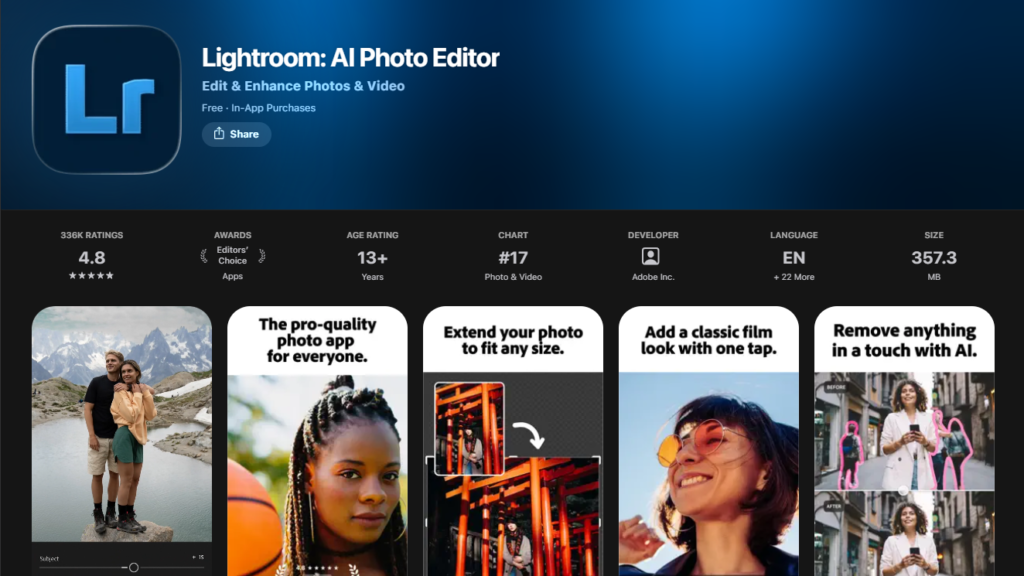
What It Does: Lightroom is the professional standard, and its mobile app carries a surprising amount of that power — full RAW editing, curves, color grading, masking, and cloud sync across every device.
What I Love: The masking tools are the best I’ve used on a phone, full stop. Selecting just the sky or just a face and adjusting it independently used to require a desktop.
What Could Be Better: The subscription stings, and pricing has shifted around enough this year that I’d check the current rate in-app before committing. Roughly, expect somewhere around $10–15 a month for Lightroom alone, or closer to $20 a month if you want Photoshop bundled in.
Pricing: Free to download with limited editing; full features need an Adobe subscription.
Best For: Anyone shooting RAW who wants real, professional-level control without opening a laptop.
2. Snapseed
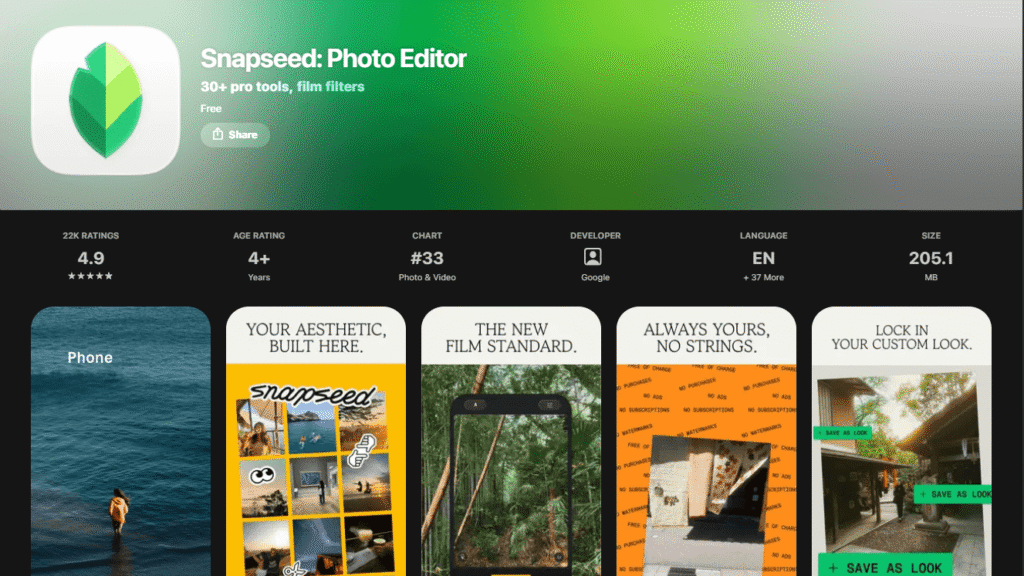
What It Does: Snapseed is a completely free, ad-free editor from Google with more than 30 tools, including curves, selective adjustments, healing brush, and full RAW support.
What I Love: It’s still entirely free — no subscription, no watermark, no “unlock this filter” popup. Google pushed a genuinely big update to it recently that added batch editing and a built-in camera mode, so it clearly isn’t being abandoned.
What Could Be Better: There’s no desktop version, and the tool-first layout can feel a little less intuitive to total beginners at first.
Pricing: 100% free.
Best For: Anyone who wants a serious editor without paying a cent — easily one of the best free photo editing apps around.
3. VSCO
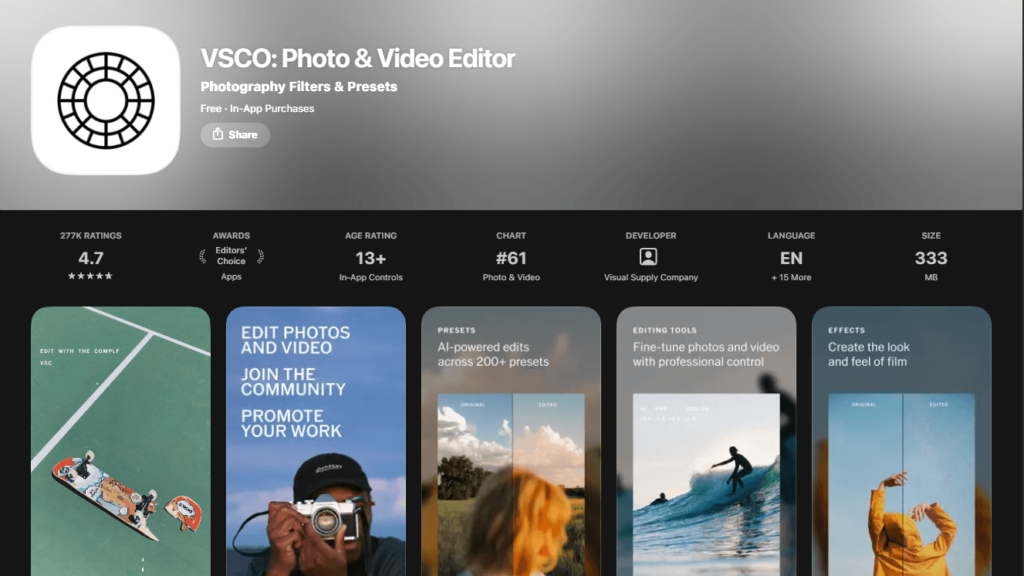
What It Does: VSCO built its name on film-inspired presets and a clean, minimal interface — less about granular manual control, more about a consistent look across your whole feed, fast.
What I Love: The presets genuinely look like film, not like a filter slapped on top. The community side also skips public like counts, which makes it feel less like a popularity contest.
What Could Be Better: The free tier only gives you a small taste of the preset library, and manual editing tools are noticeably more basic than Lightroom or Snapseed. There’s also a pricier tier aimed at working photographers running an actual business, which most casual users can safely ignore.
Pricing: Free tier available; paid membership runs roughly $30–60 a year depending on what you need.
Best For: Anyone building a consistent, film-like aesthetic across Instagram or a portfolio.
4. Picsart
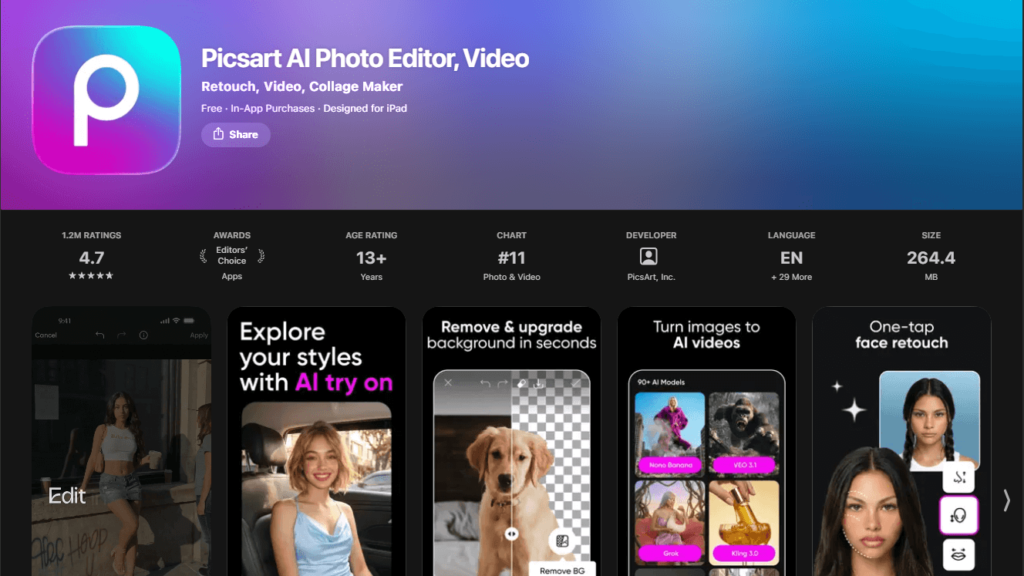
What It Does: Picsart blends photo editing with graphic design — AI background removal, templates, and sticker packs — so it plays in a slightly different lane than a pure photo editor.
What I Love: The background remover is fast and surprisingly accurate, and having templates built in means I can go from “product photo” to “finished post” without switching apps.
What Could Be Better: The free version watermarks exports and caps how many AI credits you get, which got old fast once I started using the AI tools regularly.
Pricing: Free with watermarks and limits; paid plans run roughly $8–13 a month depending on billing cycle.
Best For: Creative, playful edits — collages, memes, and social posts that need more than a filter.
5. Canva
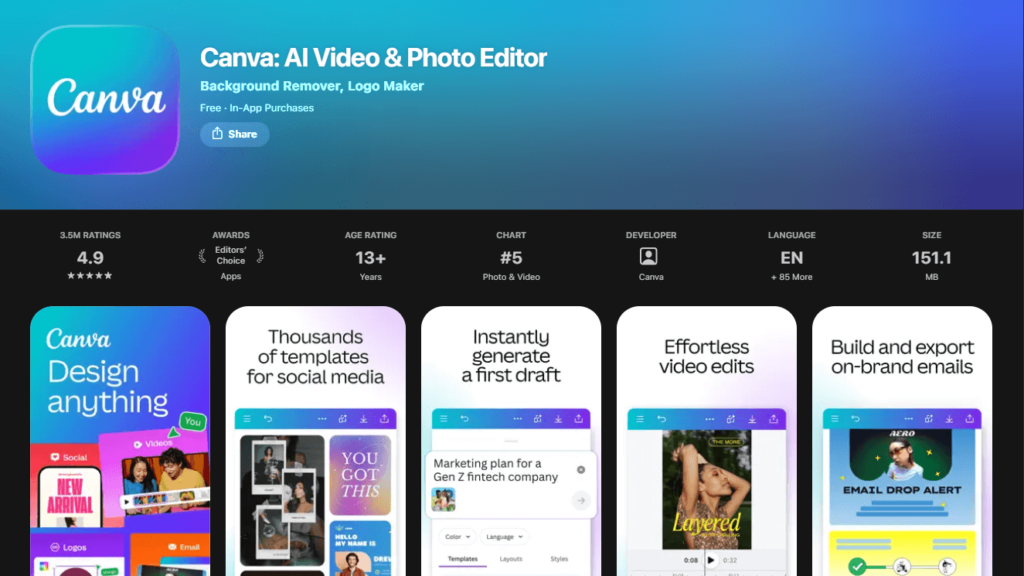
What It Does: Canva isn’t a dedicated photo editor first — it’s a design tool that happens to include solid photo editing, background removal, and enough templates to build a whole content calendar around.
What I Love: If you’re making social media graphics and not just editing single photos, nothing else here comes close. Templates, brand kits, and resizing for every platform in a couple of taps.
What Could Be Better: For pure photo retouching it’s not as precise as Lightroom or Snapseed. I still reach for another app first if the photo itself needs real work.
Pricing: Genuinely usable free plan; Pro runs roughly $12–18 a month depending on billing.
Best For: Social media managers and content creators who need graphics and photo edits in the same place.
How I Tested These Apps
I didn’t just open each of these image editing tools, poke around for five minutes, and call it done. I wanted a real side-by-side, so here’s the process.
First, I picked one photo — a slightly underexposed shot from a weekend trip — and edited that exact same image in all five apps for editing photos. Same starting point, same goal: make it look like it was shot in better light.
Second, I compared output quality at full resolution, not just on my phone screen, since compression hides a lot.
Third, I paid attention to the interface itself — could I find the tool I needed in under ten seconds, or was I hunting through menus? That mattered more than I expected.
Finally, I checked export quality and file size, because a gorgeous edit is useless if the app crushes it into a blurry mess on export.
Free vs Paid Apps – Which Is Better?
Here’s my honest take after paying for more apps for editing photos than I care to admit: for most people, the free version is enough.
Snapseed alone covers most of what a casual creator needs, and it costs nothing. Canva’s free tier is genuinely generous too, not the stripped-down teaser some other apps offer.
Where paid tiers earn their keep is volume and precision. If you’re editing dozens of photos a week for client work, or you need RAW files handled properly, Lightroom’s subscription starts making sense. If you want a consistent look across hundreds of posts, VSCO’s preset library becomes worth it.
But if you’re a casual poster editing a handful of photos a week, don’t let anyone talk you into a subscription before you’ve maxed out what free apps for editing photos can already do.
Apps for Different Use Cases
Different goals call for different tools, so here’s how I split things up:
- Social Media Content: Canva and VSCO — Canva for graphics and layout, VSCO for a consistent photo aesthetic.
- Professional Photography: Lightroom and Snapseed — Lightroom for RAW files and client work, Snapseed when I want serious control without a subscription.
- Quick Edits: Snapseed and Picsart — both fast enough to use while you’re still standing where you took the photo.
- Creative Edits: Picsart and Canva — anything involving collages, text overlays, or combining multiple images.
No matter which category you fall into, mixing and matching a couple of these apps for editing photos usually beats trying to force one single app to do everything. If you’re building out a full content calendar, it’s worth checking out a dedicated guide on social media content creation too — the app is only half the equation.
Mistakes I Made When Choosing Photo Editing Apps
I made basically every mistake possible before landing on the apps for editing photos I actually use now. Learn from these so you don’t repeat them.
Mistake 1: Paying for premium apps I didn’t need. I subscribed to a paid editor for one feature I used exactly twice, then forgot to cancel for four months. Test the free version thoroughly first.
Mistake 2: Ignoring free apps that were just as good. I assumed “free” meant “worse” and skipped Snapseed for months because of it. That was just wrong.
Mistake 3: Not checking if the app works offline. I got burned mid-trip with spotty signal and an editor that needed a connection just to save edits. I check this before committing to anything new now.
Mistake 4: Over-editing photos and making them look unnatural. Early on I cranked saturation and sharpening on everything because I could. Photos looked processed instead of good. Less is almost always more.
Mistake 5: Not exploring all features before deciding. I wrote off Picsart as “just a meme app” for way too long before realizing the background remover alone was worth keeping it installed.
Frequently Asked Questions
Here’s everything people ask me most often about this topic:
What are the best apps for editing photos? Based on my own testing, Adobe Lightroom, Snapseed, VSCO, Picsart, and Canva cover almost every use case, from professional RAW editing to quick social graphics.
Which photo editing app is free? Snapseed is completely free with no subscription or watermark. Canva and Picsart also have solid free tiers, just with some features gated behind a paid plan.
Is Adobe Lightroom worth it? If you shoot RAW or do client work, yes. If you’re a casual poster, Snapseed gets you most of the way there for free.
Can I edit photos on my phone like a pro? Genuinely, yes. The gap between mobile and desktop editing has closed a lot, and tools like masking and curves that used to be desktop-only are now standard in several photo editing apps.
Which app is best for Instagram photos? VSCO for a consistent aesthetic, Canva if you’re also designing graphics and carousels, not just editing single shots.
Are there apps for editing photos without internet? Snapseed and Lightroom’s core editing tools both work offline once installed, though some AI features need a connection.
Is Snapseed better than Lightroom? Different tools for different jobs. Snapseed is faster and completely free; Lightroom has deeper RAW controls and better library organization if you’re managing a big archive.
What app do influencers use for photos? From what I’ve seen, it’s usually a mix — VSCO or Lightroom for the actual edit, then Canva or Picsart layered on top for text, templates, or graphics.
My Honest Take
After putting all five of these apps for editing photos through the exact same test, my personal favorite is still Snapseed — mostly because it’s free, powerful, and has never once tried to sell me something mid-edit.
That said, Lightroom stays installed for anything RAW, and Canva is basically always open in a tab for graphics. There’s no single “best” here, just the right tool for what you’re actually trying to make. If you only download one thing from this whole list of apps for editing photos, make it Snapseed and go from there.
Looking to boost your productivity and stay organized this semester? Also check out my college-tested guide on the 15 best apps for students that will handle your notes, schedules, and study routines for free.
Which app do you use for editing photos? Drop a comment below — I’d love to hear your experience!
