
My old Windows laptop used to sound like it was preparing for takeoff every time I opened more than four Gmail tabs. Fans screaming, case warm enough to fry an egg on, and I wasn’t even doing anything demanding. Just email, a Google Doc, and a Zoom call running quietly in the background.
Then a friend lent me her Chromebook for a weekend trip, and something weird happened: everything just worked. Tabs opened instantly.
The fan, if it even had one, stayed silent the whole time. Battery lasted the entire flight plus a two-hour layover. I remember sitting in that airport lounge thinking, “Wait, this is actually faster for everything I do.”
That weekend turned into a two-year habit of testing operating systems specifically for web-based work — the stuff most of us actually do all day: email, docs, video calls, project boards, design tools, all running in a browser tab. The question I kept circling back to was simple: which operating system is optimized for web apps?
I’m not loyal to any one OS. I’ve broken up with all four of them at some point out of pure frustration.
But after running the same daily workflow across Chrome OS, Windows 11, macOS, and Linux, I’ve got real numbers, real opinions, and a few embarrassing purchases to admit to. If you’re trying to figure out which operating system is optimized for web apps before your next laptop purchase, I want to save you some of the trial and error I went through.
Spoiler: there’s no single universal winner. But there is a clear answer depending on how you actually work, and I’ll walk you through exactly which operating system is optimized for web apps for each type of user by the end of this post.
What Does “Optimized for Web Apps” Actually Mean?
Before I get into which operating system is optimized for web apps, let’s define what that phrase actually means in practice, because it’s not just marketing talk.
To me, an OS optimized for web apps checks four boxes:
- Pages and tabs load fast, even with 15+ tabs open
- The system stays cool and quiet under normal browser load
- Battery life holds up through a full workday of Gmail, Docs, and Slack
- Cloud services like Google Drive, OneDrive, and iCloud sync without extra software or workarounds
This matters way beyond developers and IT folks. If you’re a student writing essays in Google Docs, a freelancer juggling five browser tabs of client work, or a remote employee who basically lives in Zoom and Notion, your entire workday runs through a browser window. The operating system underneath is just the plumbing that keeps that browser fed and happy.
This is also where Progressive Web Apps, or PWAs, come into the picture. A PWA is a website that behaves like an installed app — it gets its own icon, opens in its own window, works partially offline, and can send notifications, all without a trip to an app store. Gmail, Google Docs, Canva, and Spotify all offer PWA versions now.
The better an operating system handles PWAs, the blurrier the line gets between “website” and “real app,” and that blur is basically the whole game when you’re asking which operating system is optimized for web apps.
My Testing Setup – How I Compared Operating Systems
I didn’t want to just eyeball this, so I ran the same routine on four machines over about six weeks:
- Chromebook: Acer Chromebook Spin 714
- Windows laptop: Dell XPS 13 (glad that name’s back)
- MacBook: MacBook Air (M5 chip)
- Linux machine: Ubuntu 26.04 LTS on a ThinkPad
Every device ran the same daily circuit: 20-plus Gmail and Google Docs tabs, a two-hour Zoom call, Slack running in the background, a few Notion pages, and some light Figma work. I timed boot speed and tab-switching lag with a stopwatch, tracked battery drain through each system’s built-in battery report, and cross-checked browser performance with Chrome DevTools and Google PageSpeed Insights. For cross-browser quirks, I also ran a few pages through BrowserStack to see how consistent things looked across Chrome, Edge, and Safari.
None of this was lab-grade science. It was me, my actual job, and four laptops fighting for desk space for a month and a half. But it’s real usage, not spec-sheet guessing, and that’s exactly the kind of testing you need if you’re trying to figure out which operating system is optimized for web apps for your own workflow.
(If you haven’t picked your hardware yet, I’ve also got a full guide on choosing the best laptop for web apps that’s worth a look before you buy.)
Chrome OS – The Web App Champion?
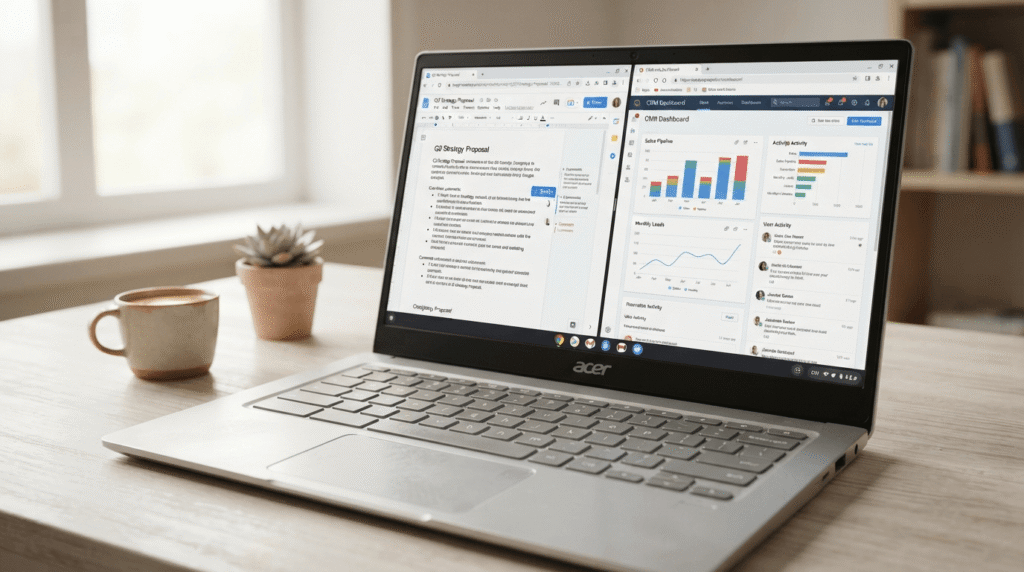
Chrome OS is where this whole obsession started for me, so I’ll be upfront: it’s still my pick when someone asks which operating system is optimized for web apps for pure browser-based work.
The Spin 714 boots in around 8 seconds. Tabs open instantly, even with 25-plus open across two windows. Google Workspace — Docs, Sheets, Slides — feels like it was built specifically for this hardware, which, honestly, it kind of was.
Signing in synced my extensions, bookmarks, and saved passwords in under a minute. No setup wizard, no bloatware to clear out first.
Battery life was the real shock. I got close to 11 hours of continuous Docs, Gmail, and Slack use on a single charge, and thermal throttling was never a concern because there was barely any heat to manage in the first place.
But Chrome OS has real limits. Offline functionality depends entirely on which apps you use. Google Docs works offline if you set it up ahead of time, but plenty of web apps just show a blank screen the second your Wi-Fi drops.
Native app support is thin, too. You’re relying on Android apps from the Play Store or a Linux container for anything outside the browser, and both feel like workarounds rather than real solutions. Serious video editing, professional design work, and PC gaming are pretty much off the table.
One more thing worth knowing before you buy: Google has confirmed it’s folding Chrome OS into Android under a project some outlets are calling “Aluminium OS,” with a rollout expected sometime in 2026. Any Chromebook you buy today should keep working exactly as it does now, but the platform itself is mid-transition, so it’s fair to factor that into a long-term purchase.
Who should choose Chrome OS? Students, remote workers who live entirely in Google Workspace or the web versions of Microsoft 365, and anyone who wants a laptop that just turns on and works. If 90% of your job happens in browser tabs, Chrome OS is hard to beat as a web app-friendly operating system.
Windows 11 – The Versatile Contender
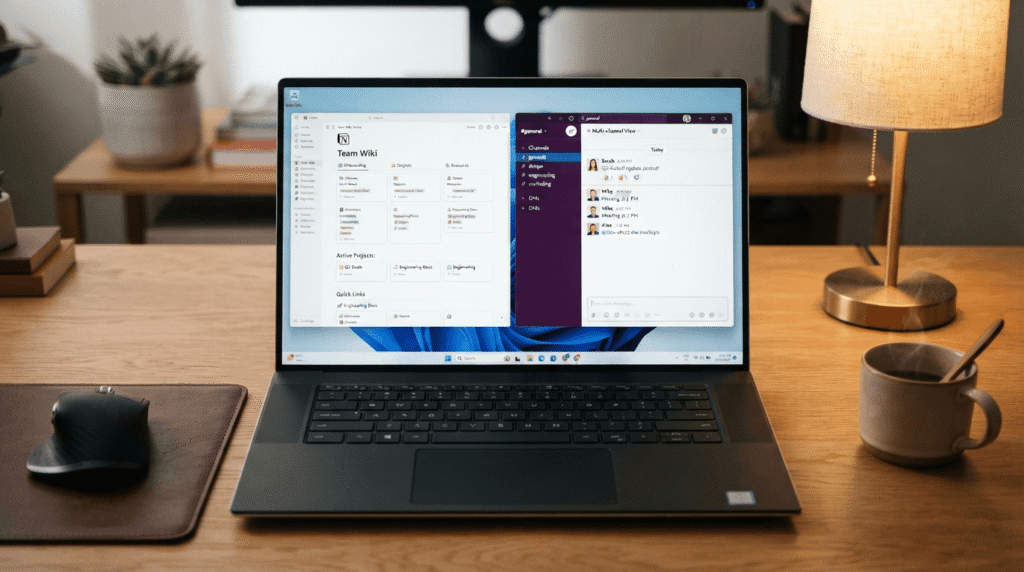
Windows 11 is the one nobody can fully avoid, and it earns that with genuinely solid web app performance, as long as you accept the trade-offs.
Edge handles PWAs well, letting you install Gmail, Google Docs, or Notion as standalone windows pinned to the taskbar, complete with jump lists and notifications. Chrome runs identically to how it runs everywhere else, tab for tab. In my testing, the XPS 13 matched the MacBook Air on raw tab-switching speed and beat the Chromebook the moment I needed a native app running alongside the browser, like exporting a big Excel file while a Teams call ran in the background.
The catch is resource overhead. Fresh out of the box, background processes, Windows Update, and a handful of preinstalled trial apps were quietly eating CPU and battery before I’d opened a single tab. Battery life came in noticeably behind Chrome OS and macOS under identical use, and fan noise crept back in during heavier multitasking.
Pros: it runs everything, web apps, legacy business software, games, creative suites, you name it. Cons: it’s heavier, comes with bloatware you’ll want to strip out immediately, and burns through battery faster than the competition.
So if you’re asking which operating system is optimized for web apps but also need to run Photoshop, a work VPN client, or Steam on weekends, Windows 11 is the honest, practical answer.
Who should choose Windows? People who need one machine to handle web apps and everything else: native software, gaming, and the niche business tools that still don’t have great web versions.
macOS – The Developer’s Favorite?
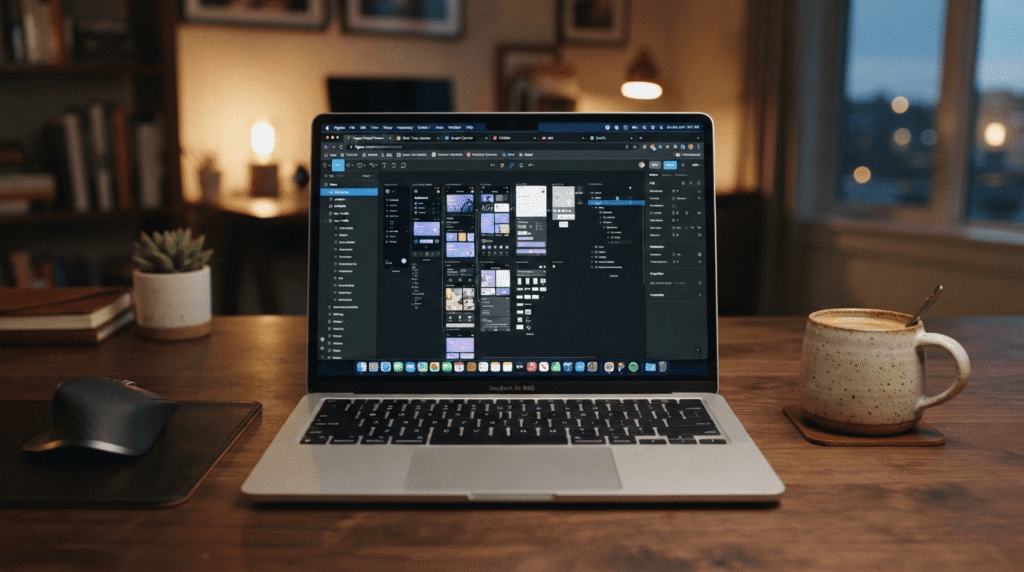
Apple Silicon changed my opinion of macOS for web apps almost overnight. The MacBook Air with the M5 chip handled the same 20-tab Gmail and Docs routine without breaking a sweat, and it barely got warm doing it.
Safari sips battery in a way Chrome simply doesn’t. I saw noticeably longer runtime on Safari versus Chrome for the same browsing session. The trade-off is that some web apps, including a few project management tools and Webflow’s site editor, run a touch smoother in Chrome on macOS than in Safari, so power users often install Chrome anyway and give back some of that battery advantage.
Where macOS really shines is the mix of web apps and native creative software. Figma, Notion, and Slack all have polished native Mac apps that feel faster than their browser versions, and if your work touches design or development, having Terminal and a real Unix environment underneath is a genuine advantage no Chromebook can match.
My honest take: if your question is which operating system is optimized for web apps and nothing else, macOS is fantastic but a little overkill. You’re paying a premium for GPU and CPU power that a browser tab barely touches.
Who should choose macOS? Developers, designers, and creative professionals who need both excellent web app performance and serious native software, and don’t mind paying for it.
Linux – The Customizable Powerhouse
Linux is the wildcard, and it deserves more credit for web app performance than it usually gets.
I ran Ubuntu 26.04 LTS on the ThinkPad, and Firefox and Chrome both flew. Tab load times were on par with the Chromebook, and I could strip out every background service I didn’t need, which macOS and Windows simply don’t let you do as easily.
Fedora and Pop!_OS are the other two distros I’d point beginners toward. Pop!_OS in particular is a great fit for anyone repurposing an older laptop purely for browser-based work.
Security and customization are where Linux pulls ahead. You control exactly what runs at startup, exactly what has access to your files, and exactly how stripped-down you want the desktop environment to be.
The honest downside is the learning curve. I lost an afternoon to a Wi-Fi driver that needed a manual fix, and Slack, Zoom, and Figma all lean on unofficial or web-only versions on Linux instead of fully native apps, which occasionally means missing features or a slightly clunkier interface.
For anyone comfortable getting their hands a little dirty, Linux is a legitimate answer to which operating system is optimized for web apps. You just end up building that optimization yourself instead of getting it out of the box.
Who should choose Linux? Developers, tinkerers, privacy-focused users, and anyone giving old hardware a second life as a lightweight, browser-first machine.
Which Operating System Is Optimized for Web Apps? – My Verdict
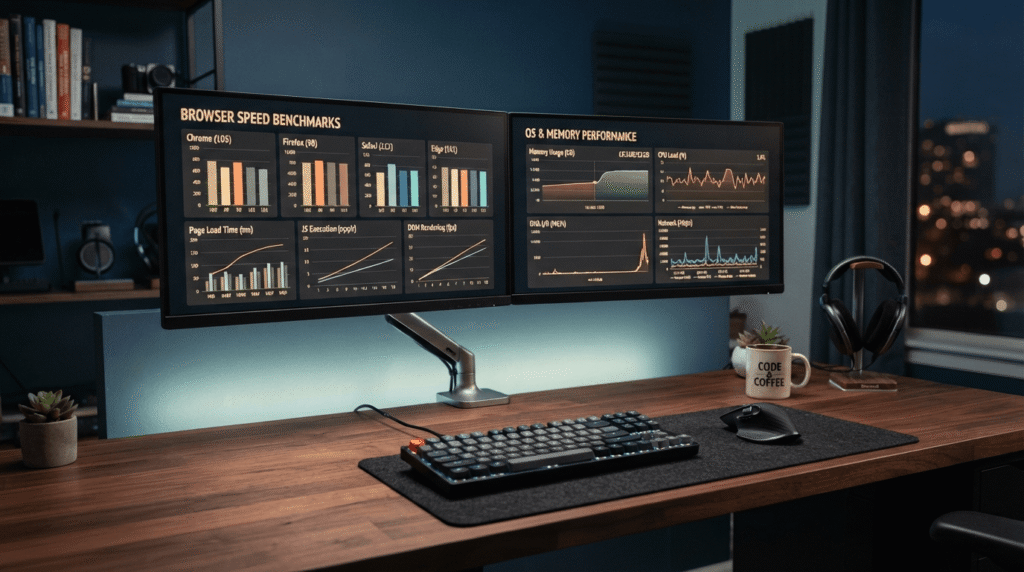
Here’s how the four stacked up after six weeks of daily use:
| OS | Performance | Battery Life | Ease of Use | Web App Experience |
|---|---|---|---|---|
| Chrome OS | Fast for browser tasks | Excellent (10–11 hrs) | Very easy | Excellent |
| Windows 11 | Strong, but resource-heavy | Good (6–8 hrs) | Easy | Very good |
| macOS (M5) | Very fast, efficient | Excellent (14+ hrs) | Easy | Excellent |
| Linux | Fast, varies by distro | Good to great | Moderate to steep | Very good |
So, which operating system is optimized for web apps overall? Honestly, there’s no single answer, and I’d be lying if I gave you one.
- Best for students and remote workers: Chrome OS
- Best for all-rounders: Windows 11
- Best for developers: macOS or Linux
- Best for customization: Linux
It depends on how you work, what else you need the machine to do, and how much patience you have for setup versus plug-and-play.
Mistakes I Made When Choosing an OS for Web Apps
Mistake 1: Buying a powerful Windows PC just for browsing. I once bought a laptop with a gaming-grade processor because I thought “more powerful” automatically meant “better for web apps.” It didn’t. I wasted money on hardware a browser tab never touched, and I paid for it in battery life every single day.
Mistake 2: Switching to Linux without checking my actual tools first. I wiped a laptop and installed Linux before confirming that Slack, Figma, and Notion all worked smoothly on it. Two of the three did, but the third gave me enough friction that I regretted the timing, not the decision itself.
Mistake 3: Underestimating Chrome OS, thinking it was “just a browser.” I dismissed Chrome OS for almost a year because I assumed it couldn’t handle real work. Once I actually tested it against my daily tasks, it handled 90% of my job better than the “real” computer I’d been lugging around.
Mistake 4: Ignoring PWA support before deciding. I picked a machine once without checking how well it handled installed web apps, and I ended up with a clunky, tab-heavy setup instead of clean, app-like windows for the tools I used constantly.
Every one of these came down to not asking which operating system is optimized for web apps for my specific workflow before I already owned the hardware.
Frequently Asked Questions (FAQs)
Which operating system is optimized for web apps?
Chrome OS is generally the most optimized for pure web app use, thanks to fast boot times, minimal background overhead, and deep Google Workspace integration. Windows 11 and macOS are close behind if you also need native software alongside your browser tabs.
Which operating system is best optimized for web apps?
For browser-only workflows, Chrome OS wins on speed and battery life. For a mix of web apps and native software, Windows 11 and macOS are the better operating systems for web applications overall, since neither forces you to give up desktop-grade programs.
Is Chrome OS only for web apps?
Not entirely. Chromebooks can run Android apps from the Play Store and, on many models, Linux apps through a built-in container. Both feel like workarounds rather than a full desktop experience, so treat Chrome OS as web-app-first, not web-app-only.
Can I use web apps on Windows 11?
Yes, and it handles them well. Edge and Chrome both support installing PWAs as standalone apps, and Windows 11 runs the full range of Google Workspace and Microsoft 365 tools without issue.
Is macOS good for web apps?
Very. Apple Silicon chips like the M5 handle browser-heavy workloads with excellent speed and battery life, and Safari is especially efficient. The only catch is that a handful of web apps run smoother in Chrome than in Safari.
Which Linux distro is best for web apps?
Ubuntu, Fedora, and Pop!_OS are the three I’d recommend. Ubuntu is the safest choice for beginners, while Pop!_OS is a great pick for reviving older hardware into a lightweight, browser-focused machine.
What is a PWA (Progressive Web App)?
A PWA is a website that behaves like an installed app. It gets a desktop icon, opens in its own window, and can work offline and send notifications, all without an app store download.
Do web apps work offline?
Some do, some don’t. It depends entirely on whether the app was built with offline support, like Google Docs’ offline mode. Plenty of web apps still require an active connection to function at all.
Which OS is best for Google Workspace and Microsoft 365?
Chrome OS is the smoothest for Google Workspace specifically. For Microsoft 365, Windows 11 has the edge with native desktop apps, though the web versions of Word, Excel, and Teams run perfectly well on any of the four operating systems.
My Honest Final Take
If you ask me point-blank which operating system is optimized for web apps, my answer is Chrome OS, for pure web app usage. But the moment you need native software, a specific creative suite, or serious gaming, Windows or macOS is the way to go, and Linux is there for anyone who wants full control and doesn’t mind a learning curve.
None of these operating systems is “wrong.” They’re just built for different versions of a workday that increasingly happens entirely inside a browser tab.
Which operating system do you use for web apps? Drop a comment below, I’d honestly love to hear what’s working for you.Also, if you take blurry screenshots of your browser benchmarks, OS settings, or client dashboards and need to clean them up for your site, check out my step-by-step guide on how to unpixelate images for free.