
I used to be the guy standing in the cereal aisle, phone in one hand, trying to remember if we were out of coffee or just running low. My paper lists lived in my car console, my jacket pocket, the kitchen counter — anywhere except my hand when I actually needed them. I’d get home with three bags of snacks and no laundry detergent, the one thing I’d actually driven there for.
That changed the day I stopped fighting my iPhone and started using it the way it was actually built to be used. Once I figured out how to make a grocery list on iPhone with the two apps already sitting on my Home Screen, I never bought another paper notepad again. No extra download, no subscription, no “create an account to sync” wall — just Reminders and Notes, set up the right way.
| Method | Best For | Main Advantage |
|---|---|---|
| 1. Apple Reminders | Daily Store Visits | Auto-sorts items into aisles automatically |
| 2. Apple Notes | Meal Planning & Recipes | Shared flexible checklists with real-time editing |
| 3. Siri Shortcuts | Hands-Free Adding | Add items instantly using voice while driving or cooking |
Somewhere between my third abandoned grocery list grocery app, a forgotten password, and a phone full of Notes titled “shopping (2),” I found a system that actually stuck. This is the exact setup I use every week: three methods, when to use each one, the pitfalls that trip people up, and the power-user tricks that made it click for me.This automatic categorization feature is the main reason why knowing how to make a grocery list on iphone with the Reminders app is such a game-changer.
Apple Reminders vs. Apple Notes vs. Third-Party Apps: A Quick Comparison
Before the step-by-step, here’s the honest breakdown I wish someone had shown me before I spent a weekend comparing apps in the App Store.
| Feature | Apple Reminders | Apple Notes | Third-Party Apps |
|---|---|---|---|
| Auto-Sorting | ✅ Built-in Groceries list type | ❌ Manual sections only | ⚠️ Sometimes, often paywalled |
| Siri Voice Support | ✅ Full hands-free adding | ⚠️ Dictation only, no direct add | ⚠️ Depends on the app |
| Sharing with Partner | ✅ Free, instant via iCloud | ✅ Free, instant via iCloud | ✅ Free, but everyone needs the app |
| Winner | 🏆 Best for daily shopping | Best for flexible, freeform lists | Best only for Android households |
Reminders wins for the actual shopping trip. Notes wins when your list needs more room to breathe. Third-party apps only earn their spot if your household is split between iPhone and Android.
Method 1: Using Apple Reminders Auto-Categorization
This is the fastest answer I have for how to make a grocery list on iPhone that organizes itself while you type. Apple built a dedicated “Groceries” list type into Reminders, and the Apple Reminders grocery list auto categorize feature does exactly what it sounds like — it reads what you type and files it under headings like Produce, Dairy, Bakery, Meat, and Frozen Foods without you lifting a finger.
└── Add List (“Groceries”)
└── List Type: Select “Groceries”
└── Start adding items (Auto-categorizes instantly)
Here’s how I set mine up:
- Open the Reminders app.
- Tap Add List.
- Name it something simple — I just call mine “Groceries.”
- Tap List Type, then choose Groceries from the options.
- Pick a color and icon if you want (optional, but it makes the list easier to spot).
- Start typing items. Type “spinach” and hit return — it drops under Produce. Type “cheddar” — it lands under Dairy.
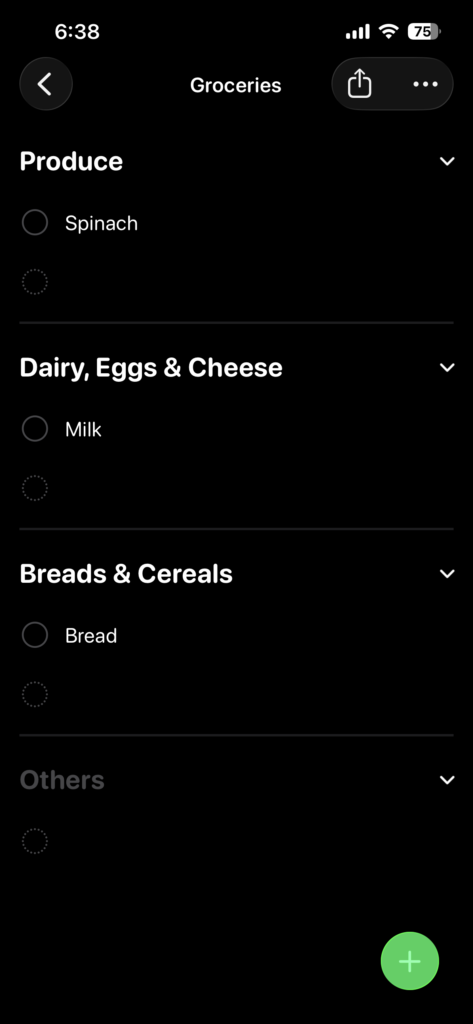
If you already have an old shopping list you don’t want to lose, you don’t have to start over. Open that list, tap More, tap Show List Info, tap List Type, and switch it to Groceries. Every item you add from that point forward sorts itself.
Every so often, an item lands in the wrong spot — usually something oddly named or a store brand Apple hasn’t seen before. Tap and hold it, drag it into the right category, and Reminders remembers your correction the next time you type that exact item. That’s really the whole trick behind how to make grocery list sorting automatic: pick the right List Type once, and everything downstream takes care of itself.
None of this needs the newest iPhone or a special setting. It works on any iPhone with iCloud Reminders turned on.If you want the quickest system for daily shopping, understanding how to make a grocery list on iphone using built-in Apple apps will save you hours every month.Once configured, this remains the most convenient approach for how to make a grocery list on iphone that keeps your items automatically sorted by store aisle.
Method 2: Creating a Shared Grocery Checklist in Apple Notes
Reminders is my daily driver, but Apple Notes is where I keep the version of my list that needs more flexibility — recipe links, a running meal plan, or a note my partner and I both scribble on. If you’re looking for how to make a grocery list on iPhone that doubles as a shared planning space, this is the method.
- Open the Notes app and start a new note inside the iCloud section, not “On My iPhone” — sharing won’t work otherwise.
- Tap the checklist icon in the toolbar (a circle with a checkmark) to turn each new line into a tappable checkbox.
- Type your items, hitting return after each one to create the next checkbox.
- Tap the Share icon at the top of the note.
- Choose Collaborate, then send the invite through Messages, Mail, or a copied link.
- Once the other person accepts, you’re both editing the same live list.
This collaborative setup perfectly answers how to make a grocery list on iphone for families who want to share household chores effortlessly.
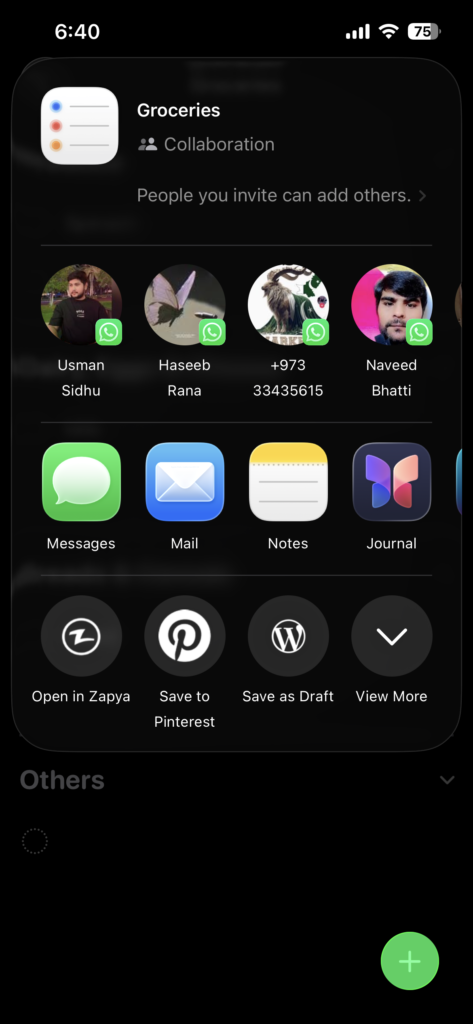
A small orange dot appears next to the note if something changed since you last opened it, so you know at a glance whether your roommate added anything. You can even type “@” followed by someone’s name to flag them directly inside the note. It’s a genuinely good answer to how to make a grocery list on iPhone for two people who split the shopping and don’t want two separate lists floating around.
Method 3: Siri Shortcuts & Hands-Free Adding
Half the time I remember I’m out of something while my hands are covered in dish soap or I’m merging onto the highway. That’s where Siri earns its keep — it’s the hands-free way of how to make a grocery list on iPhone without ever touching the screen.Learning how to make a grocery list on iphone completely hands-free is a lifesaver for when you are driving or have messy hands in the kitchen.
Just say:
“Hey Siri, add milk to my grocery list.”
Siri drops it straight into the list. If the list doesn’t exist yet, Siri offers to create it on the spot. A few things I’ve learned make this smoother:
- Name your list what you’ll actually say out loud. If your list is called “Groceries,” saying “grocery list” usually still matches — but if you’re picky, name it the exact phrase you plan to use.
- You can specify a list mid-command: “Add paper towels to the Groceries list” works even with five other lists going.
- It works from CarPlay and Apple Watch too, so a request while driving or on a walk lands in the same synced list you’ll see later at the store.
On newer iPhones with Apple Intelligence, Reminders can also pull ingredients straight out of a recipe you’re viewing in Safari, an email, or a note, and drop them into your list already sorted. It’s a nice bonus, but not a requirement — the core hands-free system works on any iPhone.Using voice commands is by far the easiest hands-free trick when exploring how to make a grocery list on iphone while your hands are busy cooking.
Advanced Power-User Tips for Your iPhone Grocery List
Once you’ve got the basics of how to make a grocery list on iPhone down, these two tricks are what actually changed my shopping trips.To get the absolute most out of your setup, these two tricks reveal how to make a grocery list on iphone work proactively for your schedule.
Setting Up Location-Based Reminders
I used to remember I needed olive oil the moment I pulled into my driveway — completely useless timing. Now my list nudges me the second I arrive at the store instead.
- Open a reminder, then tap the location icon.
- Toggle on Remind me at a location.
- Search for your store by name — most major chains show up directly.
- Choose Arriving, then adjust the radius if you want the alert to fire a little earlier, like when you turn into the parking lot instead of right at the door.
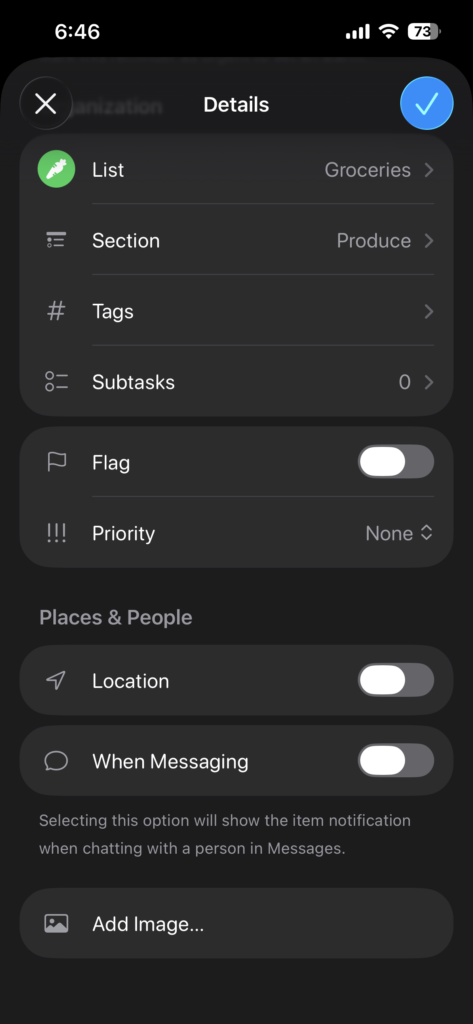
You can also just tell Siri, “Remind me to buy dish soap when I arrive at Walmart,” and it’ll set the same geofenced alert. For smaller local shops Siri doesn’t recognize by name, add the store’s address to a contact card with a custom label — that gives Siri something to match against.
Sharing Live Lists with Family via iCloud
To share a Reminders list, open it, tap the More button, choose Share List, and pick who gets access. Everyone you add sees updates the moment they happen — no refreshing, no texting “did you already get bread?”
If your whole household is already part of the same Family Sharing group, there’s an even faster route: set up a Family Grocery List, and it’s automatically shared with every member of that group with no separate invite step. It’s the closest thing to a group list that manages itself.
Real Pitfalls to Avoid (Mistakes I Actually Made)
- iCloud sync quietly turned off. If Reminders or Notes sync gets toggled off in Settings, your list stops updating for everyone else, and you won’t know until someone asks why the list looks stale. Check Settings > [Your Name] > iCloud every so often if a shared list ever seems “stuck.”
- Uncategorized custom items. Auto-sorting is smart, not psychic. Obscure brand names or typos sometimes land in an uncategorized section at the bottom instead of the right aisle. One drag-and-drop fixes it permanently for that item.
- Permission glitches when sharing. If an invite goes to someone who isn’t signed into their Apple Account, or your note is locked, sharing fails quietly. Double-check the list or note lives in the iCloud section — not “On My iPhone” only — before you send an invite.
- Forgetting to set the List Type at all. Build a list the normal way without choosing Groceries as the type, and nothing sorts automatically. This is the single most common reason people think the feature “doesn’t work.”
Before wrapping up, here are answers to the most common questions people ask regarding how to make a grocery list on iphone for daily household needs.
FAQ: How to Make a Grocery List on iPhone
Can I use my grocery list offline? Yes. Both Reminders and Notes cache everything locally, so you can view and check off items with zero signal, like in a store’s basement level. Everything syncs back the moment you’re online again.
Can I go back to a paper list if I want to? Sure — you can print directly from the share sheet in either app for a clean paper copy. I stick with digital because my phone is the one thing I never forget, but the paper option hasn’t gone anywhere if you want a physical backup for meal-prep Sundays.
Can I share my list with someone on Android? This is the real limitation. Reminders and Notes collaboration is built around Apple Accounts, so a direct in-app share won’t reach an Android phone. Your best workarounds: let them view and edit a shared Notes list through a browser at iCloud.com, or export and text the list over as plain text or a screenshot.
Does auto-categorization work in every language? Not universally — Apple currently supports it for a set of languages, not all of them. If yours isn’t supported yet, you can still build your own sections manually, and the list keeps them from then on.
Do I need a newer iPhone for any of this? No. The core system — the Groceries list type, sharing, Siri adding items — runs on any iPhone with iCloud turned on. The Apple Intelligence extras, like pulling ingredients from a recipe automatically, are a bonus on newer hardware, not a requirement.
My Actual Recommendation
If you want the short version: start with Reminders. Setting the List Type to Groceries takes ten seconds, the sorting does the organizing for you, and Siri support means you can add “olive oil” from the kitchen with wet hands and no phone in sight. Save Apple Notes for when your list needs more room — recipe links, a meal plan, a running note you and your partner both add to. And if your household is split between iPhone and Android, that’s really the only time I’d look past what’s already sitting on your phone.
That’s the complete answer to how to make a grocery list on iPhone that actually survives a real week of shopping, not just a demo. I haven’t touched a paper list in years. Set this up once, and you probably won’t either.Ultimately, mastering how to make a grocery list on iphone completely eliminates forgotten paper notes and keeps every shopping trip fast and stress-free
Planning to upgrade your setup soon? Check out our breakdown on the Foldable iPhone Release Date, Leaks, and What to Expect to see what Apple is brewing for the future of iOS gaming.
