
I tested a dozen cloud based productivity apps for six months — here’s my honest, no-fluff breakdown of what’s actually worth paying for in 2026.
The subject line said “Proposal_FINAL_v4_ACTUALFINAL_useTHISone.pdf.” I sent the wrong attachment anyway, and the client noticed before I did.
That was three years ago, back when my entire workflow lived on one laptop. Client files, half-finished proposals, invoices — all of it sitting on a single hard drive with no backup plan. When that laptop started making a noise like a dying lawnmower two days before a launch, I spent the night rebuilding a presentation from memory instead of sleeping.
I’d heard people talk up cloud based productivity apps for years and mostly tuned it out, figuring it was just a fancier name for tools I already owned. That laptop scare changed my mind fast.
These days my files live in the cloud, my team sees updates the second I make them, and I haven’t lost a document to a dead hard drive since. Getting here took a lot of trial and error with cloud based productivity apps — some genuinely changed how I work, a few were a waste of a free trial and my patience.
This guide is everything I’ve picked up from actually using cloud based productivity apps in real work, not from skimming landing pages. Here’s my top picks, how I tested them, the mistakes I made along the way, and what’s actually worth paying for in 2026.
Why I Switched to Cloud Based Productivity Apps

The real “aha” moment came a few months after the laptop scare. I was at an airport gate, boarding pass in one hand, phone in the other, when a client texted asking for the deck I was presenting that afternoon — the one sitting on my desktop at home.
I opened Google Drive on my phone, found the file, and sent a clean PDF to my client’s inbox before boarding even started. No panic, no calling someone back home to email it over.
That’s when cloud based productivity apps stopped being a buzzword and started being the reason my job was still doable from a gate at 6 a.m. A few things sold me for good:
- Accessibility from anywhere — a doc from my phone, a hotel business center, or my kid’s iPad in a pinch
- Real-time collaboration — no more “did you get my email with the changes,” just watching a cursor move on the same page
- Automatic backups — my files survive a dead laptop, a spilled coffee, or a lost phone
- Integration with other tools — my calendar, task list, and documents actually talk to each other now
I won’t pretend cloud productivity tools fixed every problem overnight. Slow hotel wifi has ruined more than one video call. But compared to emailing myself files at 11 p.m., they were an easy trade.
My Top 5 Cloud Based Productivity Apps (Tested & Reviewed)
Here’s where the real testing happened. I didn’t just sign up and poke around for ten minutes — I used each of these inside actual projects, with actual deadlines, for at least a month. These are the five apps that earned a permanent spot in my toolkit.
(Quick heads-up: SaaS pricing changes constantly. These are the numbers each company had listed at the time I wrote this, so double-check their current pricing page before you buy.)
1. Google Workspace

Google Workspace bundles Gmail, Docs, Sheets, Slides, Drive, and Meet into one login, and it’s the backbone of my entire workflow.
What I love about it:
- Real-time editing that just works, even with six people in a doc at once
- Gemini AI is now built into every paid tier, so drafting and summarizing happen without leaving the app
- Drive search is genuinely fast, even across thousands of files
What could be better:
- Sheets still buckles under seriously heavy spreadsheets compared to Excel
- The number of admin settings can overwhelm a first-time user
Pricing: No permanent free plan, but there’s a 14-day trial. Paid plans run from around $7 per user/month (Business Starter) up to about $22 (Business Plus) when billed annually — expect roughly 20% more on monthly billing. Larger orgs need a custom Enterprise quote.
Best for: Teams already living in Gmail, or anyone who wants one login for email, docs, and video calls.
2. Notion
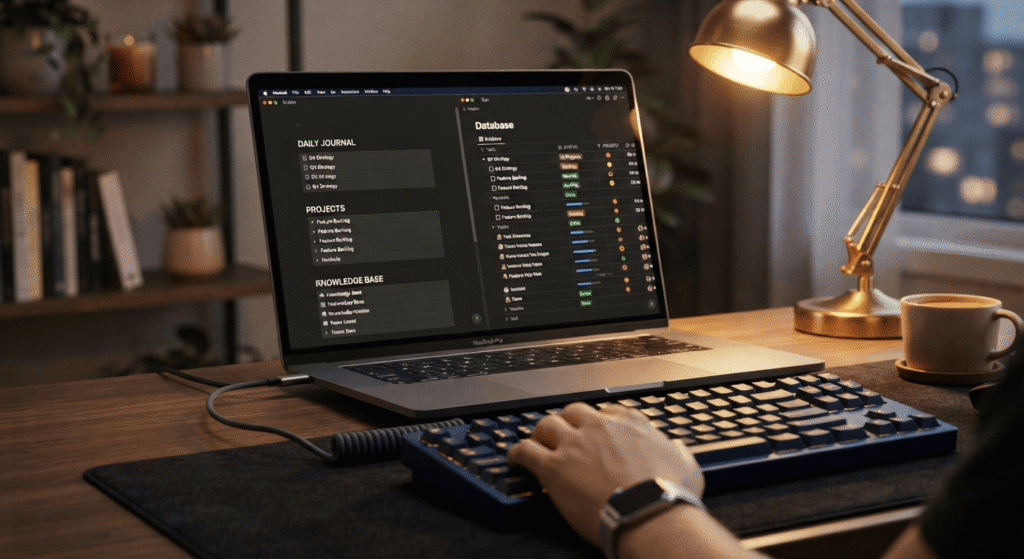
Notion is part notebook, part database, part project tracker, and it’s the app I open first every morning.
What I love about it:
- One workspace for notes, docs, and light project tracking instead of juggling three separate apps
- Templates for almost anything, from a content calendar to a simple client CRM
- The free plan is genuinely usable for solo work, not just a demo
What could be better:
- The learning curve is real — I spent a full weekend just watching tutorials before it clicked
- Notion AI now lives behind the pricier Business tier, so casual users lose easy access to it
Pricing: Free for individuals. Plus starts around $10 per user/month billed annually, and Business (which includes the AI features) runs about $20 per user/month. Enterprise is custom-quoted.
Best for: Freelancers and small teams who want one flexible home base instead of five disconnected apps.
3. Slack

Slack turned my team’s inbox into a much calmer place, mostly by replacing half of it with channels.
What I love about it:
- Searchable history that actually surfaces the message I’m digging for
- Threads keep side conversations from burying the main channel
- A huge library of integrations, so approvals and file shares show up where the team already is
What could be better:
- I learned the hard way that the free plan only holds 90 days of message history — I’ve lost context I needed right when I needed it
- Notification overload is a real risk if nobody sets team norms around it
Pricing: Free plan available. Pro runs about $7.25 per user/month billed annually, Business+ is around $15, and Enterprise+ is custom-priced for larger organizations.
Best for: Any team of more than three people who’s tired of decisions getting buried in email threads.
4. Trello
Trello’s boards-and-cards setup is the simplest project management tool I’ve used, and sometimes simple is exactly what a small team needs.
What I love about it:
- Almost zero learning curve — I onboarded a non-technical client to it in under ten minutes
- Drag-and-drop cards make status updates feel less like admin work
- The free plan covers a surprising amount for solo users and tiny teams
What could be better:
- It gets messy fast on anything more complex than a straightforward project
- Advanced views like timeline and calendar sit behind the paid Premium tier
Pricing: Free plan available. Standard runs about $5 per user/month billed annually, Premium is around $10, and Enterprise starts near $17.50 per user/month for larger teams.
Best for: Freelancers, small teams, or anyone who wants project management without a training manual.
5. Dropbox
Dropbox was one of the first online productivity apps I ever used, and it’s stuck around in my stack for one reason: file sync that just doesn’t break.
What I love about it:
- Sync is rock solid across my laptop, phone, and a shared team folder
- Smart Sync means I’m not eating up my hard drive with files I rarely open
- Sharing a folder with a client takes seconds, with no account required on their end
What could be better:
- The free plan’s storage is small enough to feel like a trial rather than a real tier
- It’s purely storage and sync — you’ll still need docs and chat tools alongside it
Pricing: Free Basic plan with limited storage. Individual Plus plans start around $10–12/month for 2TB, and business Standard plans start around $15–18 per user/month with a three-user minimum.
Best for: Anyone who shares large files with clients regularly, alongside a separate docs or chat tool.
How I Tested These Cloud Based Productivity Apps
I wanted this list to be based on actually using cloud based productivity apps, not just reading spec sheets, so here’s exactly how I tested each one:
- Setup and onboarding — how long it took to go from signup to actually getting work done
- Feature depth vs. simplicity — whether the app does a few things well or buries useful features under menus
- Mobile app performance — half my work now happens on a phone in an airport or coffee shop
- Integrations — how well each tool plays with the others I already use daily
- Customer support — I deliberately submitted a support ticket to each one instead of just reading the help docs
- Value for money — whether the paid tier actually earns the upgrade from free
I ran everything on a MacBook Pro M2 as my main machine, switched to a Windows laptop for a week to check cross-platform quirks, and tested every mobile app on an iPhone 14 Pro and a borrowed Samsung Galaxy. A tool that’s brilliant on desktop and clunky on mobile isn’t actually cloud-based software you can rely on — not when so much work happens away from a desk now.
Cloud Based Productivity Apps for Teams vs. Individuals
Not every one of these tools is built for the same kind of work. Picking cloud based productivity apps for a team is a different exercise than picking them for yourself.
During the pandemic, my small team leaned hard on three tools: Slack for daily check-ins, Google Workspace for shared docs, and Zoom for client calls. That combination got us through eighteen months of fully remote work without a single missed deadline caused by a file nobody could find. (If you want a deeper dive into remote setups specifically, check out my guide on remote work tools.)
For solo freelancers, the math is different. I don’t need Slack’s channels or Asana’s task assignments when it’s just me — Notion alone handles my notes, client info, and to-do list without any team-communication overhead.
If you’re a solo operator: lean into all-in-one tools like Notion, and keep your stack as small as possible.
If you’re managing a team: prioritize communication (Slack) and shared documents (Google Workspace or Microsoft 365) first, then layer in dedicated project management like Trello or Asana once you outgrow sticky notes and group texts.
The mistake I see freelancers make is copying a big team’s tool stack. The mistake I see team leaders make is the opposite — sticking with solo tools long after the team has outgrown them.
Mistakes I Made When Choosing Cloud Based Productivity Apps
I didn’t get my stack of tools right on the first try. Here’s what cost me time, money, or both.
Mistake 1: Overpaying for premium features I never used. I upgraded Evernote to its priciest tier mainly because a sale email hit my inbox at the right moment. Six months later I realized I’d never touched half the features I was paying for. Now I force myself to use a free trial for at least two full weeks before upgrading anything.
Mistake 2: Ignoring integration. I picked a project management tool and a file storage tool separately, without checking whether they actually talked to each other. They didn’t. I spent weeks manually copying links between the two before switching one of them out.
Mistake 3: Not checking mobile app quality before committing. One tool I tried had a genuinely broken Android app — buttons that didn’t respond, notifications that arrived a day late. Half my team gave up on it within a week, which defeats the entire point of choosing a cloud-based tool in the first place.
Mistake 4: Choosing a tool that was too complex for what we actually needed. I signed my four-person team up for Monday.com because it had the best reviews online. It also had automation rules, custom dashboards, and a learning curve steep enough that two teammates just stopped logging in. We downgraded to Trello within a month, and adoption hit 100% almost overnight.
The pattern across all four: I was choosing based on feature lists and popularity instead of what my actual workflow needed. Free-plan limits made it worse — I’ve hit a storage cap or a message-history wall at the worst possible moment more than once, usually mid-project, when switching tools wasn’t an option.
Frequently Asked Questions (FAQs)
What are cloud based productivity apps? They’re tools that store your files and data on remote servers instead of your local hard drive, so you can access your work from any device with an internet connection — think Google Docs instead of a Word file saved only on your desktop.
Which cloud based productivity app is best for small teams? For most small teams, I’d start with Slack for communication and Google Workspace for shared documents, then add Trello once you need to track tasks across more than a couple of projects.
Are cloud based productivity apps safe and secure? The major players — Google, Microsoft, Slack, Dropbox — all use encryption and offer two-factor authentication, and your files are generally safer in the cloud than on a laptop that could be lost or stolen. Turn on two-factor authentication yourself, though; the app can’t do that part for you.
Do cloud based productivity apps work without internet? Most offer some offline mode — Google Docs and Dropbox both let you mark files for offline access — but full functionality generally needs a connection. If you travel somewhere with unreliable wifi often, test the offline mode before you depend on it.
Which is the most popular cloud-based productivity app in 2026? Google Workspace and Microsoft 365 are still the two biggest names by user count, mostly because so many businesses were already using Gmail or Outlook before “the cloud” was even a marketing term.
Can I use cloud based productivity apps for free? Yes — most tools in this guide offer a genuinely usable free tier, Notion and Trello especially. Just watch for the limits (storage caps, message history, user counts) that tend to show up right when you need them most.
Final Thoughts (My Honest Pick)
No single app on this list is perfect for everyone, and anyone who tells you otherwise hasn’t used one under a real deadline. But if I had to keep just one of these cloud based productivity apps and drop the rest, I’d keep Google Workspace.
It’s the tool that fixed the exact problem that started this whole guide — the wrong-file-version chaos, the laptop-dependent panic, the 11 p.m. rebuilds. Notion is a close second for anyone doing more solo, notes-heavy work, and I still open it daily. But Google Workspace is the one that changed how my actual workday runs.
Your pick will probably look different, and that’s fine — it depends on your team size, your budget, and how much patience you have for a learning curve.
Which cloud based productivity app do you swear by? Drop a comment below — I’d love to hear what’s actually working for you.
If you’re balancing your professional workload with college courses, making sure your academic life is just as organized is crucial. Be sure to check out my complete guide on the 15 best apps for students to keep your study routine perfectly synced in the cloud.