
A few months ago I couldn’t have told you the difference between a database and a domain name. Now I run my own blog, I built my own website from scratch, and I’m knee-deep in a wallpaper site I’m calling WallDrop4K. The site’s doing fine on its own, but I already know an app is coming eventually — most people browsing wallpapers want it on their phone, not stuck in a browser tab.
So I did what I always do when I hit a wall I don’t understand: I started researching. Weeks of digging later, here’s what I found. Building an app isn’t nearly as scary as it used to be, not if you know how to build an app using the right AI tools. This guide walks through exactly what I learned — the tools, the steps, the real costs, and the mistakes I’d rather you skip. If you have a unique idea for a mobile application, understanding how to build an app is the very first step toward turning that concept into reality.
Why Use AI Tools to Build an App?
Building an app used to mean one of two things: teach yourself to code for a year, or write a check to a dev shop and hope for the best. Neither felt realistic when I was starting out. That’s the real reason so many people are turning to AI tools to build an app right now — the wall that used to keep non-programmers out just isn’t there anymore.
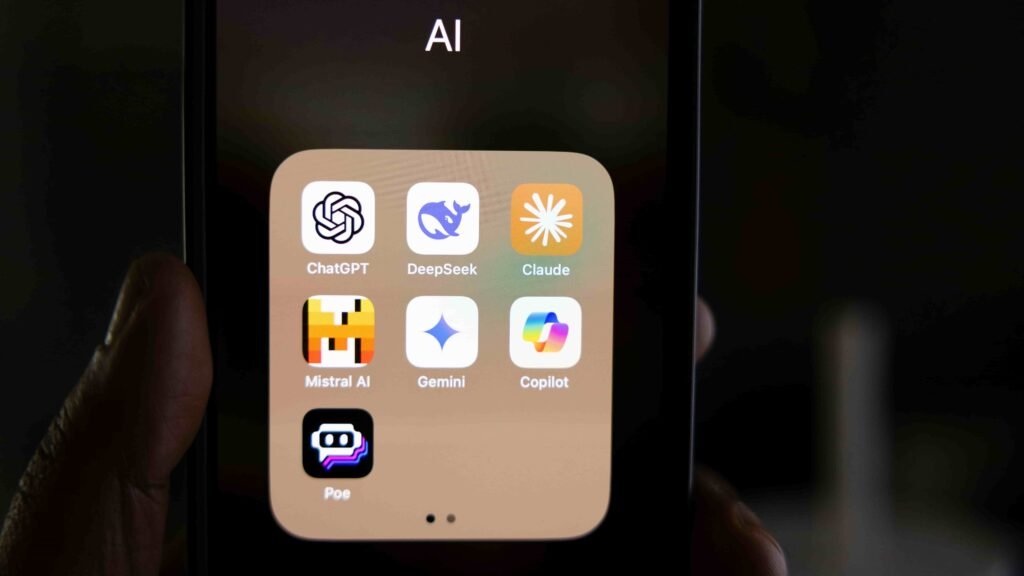
A couple of numbers back this up. Gartner projects that low-code and AI-assisted tools will account for roughly 75% of new application development by 2026, up from well under 25% just a few years back. AI tool adoption among developers jumped 76% in the last year alone. That’s not a niche trend anymore, that’s just how apps get made now. Before diving deep into how to build an app, you must clearly outline your primary features.
Here’s what actually changed:
- Speed. What used to take months of back-and-forth with a dev team now takes days, sometimes hours, for a first working version.
- Cost. You’re not funding a six-figure dev team just to test an idea. Some of these tools cost less than a streaming subscription.
- Accessibility. You don’t need to know what an API is. You describe what you want in plain English, and the tool builds it. You can genuinely create an app without writing a single line of code.
- Smarter features, built in. AI-powered search, personalization, and recommendations that used to need a data science team are basically a checkbox now.
None of that means it’s magic — I’ll get to the mistakes I made later — but it does mean you can make an app from scratch now even if your background is content and design like mine, not code.
Best AI Tools for Building an App
I tested a handful of these while researching my own build. Here’s where each one actually earns its keep. Understanding how to build an app using AI eliminates the need for expensive development teams.
1. Lovable — best no-code AI app builder for beginners
What it does: Turns plain-language prompts into a working full-stack app — front end, backend, and database — right in your browser. Best for: First-timers who want something real without touching code. Pricing: Free plan with a small daily credit allowance; paid plans start around $25/month. My take: This is where I’d point a total beginner. You describe your app, watch it build itself screen by screen, and tweak it by chatting instead of coding. The catch is that credits burn fast once you’re iterating a lot, so don’t expect the free tier to carry a whole project. If you want to learn how to build an app without writing complex code from scratch, Lovable is ideal.
2. Cursor — best AI code-assist tool if you want more control
What it does: An AI-powered code editor that writes, edits, and explains code alongside you instead of hiding it. Best for: People who want to actually understand what’s happening under the hood, or who’ll eventually hand the project to a developer. Pricing: Free Hobby plan; Pro starts at $20/month. My take: Steeper learning curve than the others, but nothing here is a black box. If you ever outgrow what a no-code tool can do, this is the natural next step.
If you’re stuck choosing between these tools, check out our in-depth comparison of Replit vs Lovable vs Cursor to pick the right workflow for your project.
3. FlutterFlow — best for a real Android and iOS app
What it does: A visual, AI-assisted builder that outputs real native code and lets you publish straight to the App Store and Google Play. Best for: Anyone who specifically needs a native mobile app, not just a mobile-friendly website. Pricing: Free to start; paid plans run roughly $39–$150/month depending on features and team size. My take: This is the one on my own shortlist for the wallpaper app, since offline downloads and push notifications need more than a website can give. It’s pricier than the others, but you own real, exportable code — no lock-in.
When you are ready to publish your native mobile application, make sure to set up your account on the Google Play Console for Android deployment.
4. Uizard — best AI design tool
What it does: Turns text prompts, screenshots, or hand-drawn sketches into editable app mockups in minutes. Best for: Mapping out your screens before you touch a builder, so you’re not designing and building at the same time. Pricing: Free to try, with paid plans that scale up as your usage does. My take: I used something similar just to lay out my wallpaper app’s screens before committing to a builder, and it saved me a good dozen “wait, where does this button even go” moments later.
5. BrowserStack App Automate — best AI testing tool
What it does: Runs your app on thousands of real phones and tablets, using AI to catch broken layouts and flag flaky behavior before your users do. Best for: Catching the ugly surprises — like a button hidden behind the keyboard on some three-year-old Android phone — before launch. Pricing: Limited free access; paid plans start around $199/month. My take: Overkill for a weekend project, but genuinely worth it once you’re getting ready to publish. Most no-code builders preview your app on one device. This shows you hundreds. When exploring how to build an app, choosing between web-based builders and native frameworks like FlutterFlow depends on your feature requirements.
Step-by-Step Guide – How to Build an App Using AI Tools
Here’s the actual process I followed, and am still following, not a theoretical one.
Step 1: Nail down what you’re actually building. What it is: a one-sentence description of your app plus the three features it absolutely cannot ship without. How I did it: for my wallpaper app, that’s browse, download, favorite. Everything else — comments, uploads, profiles — waits. AI tools used: none yet, this step is just you and a notebook. Pro tip: scope creep is the number one reason people quit halfway. Keep version one embarrassingly small.
Step 2: Sketch the screens with AI. What it is: rough mockups of every screen your MVP needs. How I did it: fed a plain-English description into an AI design tool and got a clickable set of screens back in minutes instead of days. AI tools used: Uizard. Pro tip: don’t fall in love with the first version. Generate three or four variations and steal the best parts of each.
Step 3: Build the app with an AI app builder. What it is: the actual construction phase, turning mockups into a working app. How I did it: matched the tool to the job — a no-code builder for a fast web version, with a native builder on deck for the real app. AI tools used: Lovable / FlutterFlow. Pro tip: build in small chunks and test after every feature. Asking the AI to “add everything” in one prompt is how you end up debugging a mess you don’t understand.
Step 4: Connect a real database. What it is: the part that turns a pretty prototype into something that actually stores user data. How I did it: most of these builders plug straight into Firebase or Supabase, so this ended up being a few clicks, not a separate project. AI tools used: the built-in database integrations inside Lovable and FlutterFlow. Pro tip: set up basic user permissions from day one, even for a simple app. Retrofitting security later is a headache.
Step 5: Test on real devices. What it is: making sure your app actually works outside the builder’s tidy preview window. How I did it: ran it on a couple of my own phones first, then looked at AI-powered testing tools for broader device coverage ahead of a public launch. AI tools used: BrowserStack App Automate. Pro tip: test on the oldest, cheapest phone you can borrow. That’s where layout bugs actually live.
Step 6: Launch and iterate. What it is: getting it in front of real users and treating version one as a starting point, not a finish line. How I did it: since my wallpaper site already runs on Netlify, keeping the same deploy pipeline for a web version was an easy call. A native app goes through App Store and Play Store review separately. AI tools used: whichever builder you picked already has one-click or guided deployment. Pro tip: ship before it feels ready. You’ll learn more from fifty real users in a week than another month of polishing alone.
How Much Does It Cost to Build an App Using AI?
This is the question I got asked the most while researching this, so let’s be straight about the numbers.
- No-code AI tools, solo builder: as low as $0 to start, realistically $20–$150/month once you’re building something real. This is where almost everyone should begin. Many non-technical founders struggle initially because they think learning how to build an app requires years of software engineering experience.
- Freelancer + AI tools: a freelancer using AI to speed up their own workflow can typically deliver a well-scoped app for somewhere between $10,000 and $40,000, depending on complexity.
- Agency + AI tools: a professional team using AI-assisted development usually lands between $30,000 and $120,000 for a production-ready first version, still a fraction of the $75,000–$250,000 traditional agencies used to quote before AI sped things up.
My honest recommendation: don’t skip straight to hiring anyone. Validate your idea with a no-code AI tool first. If it takes off and hits something an AI builder genuinely can’t handle, that’s the point to bring in a freelancer or agency, not before. Now that you know how to build an app step by step, it’s time to pick your tools and start building.
Mistakes I Made When Building an App with AI
Nobody warns you about this part, so here’s what I got wrong, so you don’t have to.
I underestimated the credits. Usage-based AI builders burn through a month’s allowance fast once you’re iterating constantly, not just building once. I hit that wall earlier than I expected.
I started building before I finished planning. I jumped into a builder with a vague idea and ended up rebuilding the same screen three separate times. A day of planning saves a week of redoing work.
I didn’t test on an old phone soon enough. Everything looked perfect on my own phone. Then I checked it on an older Android device and found a button half-hidden behind the keyboard. Classic mistake, and an easy one to dodge if you test earlier.
I almost picked a web-only builder for something that needed to be a real mobile app. Not every AI app builder can publish to the App Store or Google Play. Know which one you actually need before you sink weeks into a tool that can’t get you there.
Frequently Asked Questions
How to build an app using AI tools? Start by scoping your idea down to its core features, sketch your screens with an AI design tool, then build it inside a no-code AI app builder like Lovable or FlutterFlow. Connect a database, test it on real devices, and launch a small first version before adding anything extra.
How to build an app for free with AI? Most AI app builders — Lovable, Bolt.new, FlutterFlow — offer free tiers that are more than enough to build and test an MVP. You’ll likely hit a paywall once you want to publish to an app store or need more usage than the free credits allow.
How long does it take to build an app with AI? A basic working version can come together in days rather than months. A polished, production-ready app with a real database, testing, and app store approval usually takes a few weeks to a couple of months, even with AI doing the heavy lifting.
How much does it cost to build an app with AI? Anywhere from $0 on a free tier, to $20–$150/month for a solo builder on a paid plan, up to $10,000–$120,000+ if you bring in a freelancer or agency for a more complex, production-grade app.
Do I need coding skills to build an app with AI? No, not for no-code tools like Lovable or FlutterFlow, you describe what you want in plain English. That said, some basic understanding of how apps work helps you make better decisions and troubleshoot when something breaks.
What’s the best AI tool for building an app? It depends on what you’re building. Lovable is the easiest entry point for total beginners. FlutterFlow is the better call if you specifically need a native Android or iOS app. Cursor makes sense if you already know some code and want more control.
How to build an app from scratch using AI? Tools like Lovable and Bolt.new can take you from a blank prompt to a working full-stack app with no existing code or design to start from. You still need to guide it with a clear idea of what you want, but the heavy lifting is genuinely automated now.
How to build an Android app with AI? If Android, or Android and iOS both, is the actual goal, skip the web-only builders and go straight to a tool like FlutterFlow, which exports real native code and publishes directly to Google Play.
Final Thoughts
Here’s my honest take after weeks down this rabbit hole: building an app with AI tools is absolutely possible, even if you’re starting from zero like I was a few months back. It’s not effortless — you’ll still hit credit limits, rebuild a screen you didn’t plan out properly, and find a bug on some random phone you don’t own. But the gap between “I have an idea” and “I have a working app” is smaller than it’s ever been.
I’m not done with mine yet. The wallpaper site is live, the app is next, and I’ll probably make half the mistakes above all over again anyway.
Are you planning to build an app using AI? What’s your biggest challenge so far? Drop a comment below, I’d genuinely like to know I’m not the only one figuring this out in public.
