
I remember the day I switched from my Samsung Galaxy to an iPhone like it happened last week. My hands were legitimately sweaty — not because I was scared of learning a new interface, but because I was terrified I’d lose every contact I’d built up over a decade. Old coworkers, that one electrician who actually answers his phone, my aunt’s second cell number that I only use once a year.
That fear is exactly why I’m writing this. If you’re sitting there right now wondering how to migrate Android contacts to iPhone without wiping out your entire address book, I’ve been exactly where you are. Three separate times, actually: Samsung to iPhone, then a Pixel to iPhone when I tried out Google’s ecosystem for a year, and most recently a OnePlus to iPhone 17 switch just a few months ago.
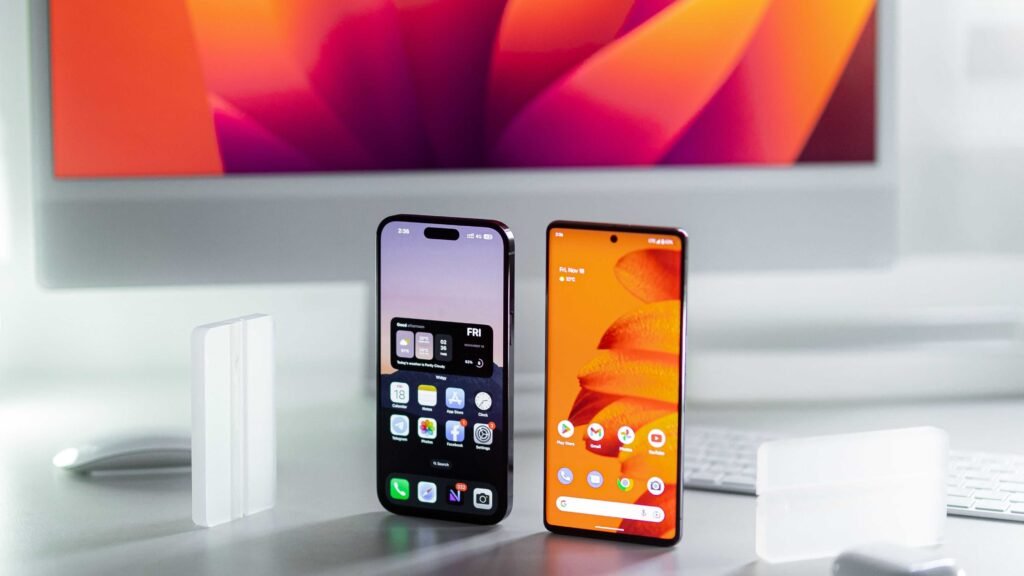
Every single time I’ve had to figure out how to migrate Android contacts to iPhone, something different went wrong. A method that worked flawlessly in 2022 got clunky by 2024. Weirdly, by 2026, a couple of things have actually gotten easier. By the end of this guide, you’ll know exactly how to migrate Android contacts to iPhone using whichever method fits your actual situation, not just the one method some rushed article told you to use.
(If you want the bigger picture beyond just contacts, I’ve also written a full guide on switching from Android to iPhone completely — worth a read once your contacts are sorted.)
How to Migrate Android Contacts to iPhone – My Preferred Method
If you only read one section of this whole guide, make it this one. After testing pretty much everything out there, my honest answer for how to migrate Android contacts to iPhone is Apple’s own Move to iOS app.
I know trusting Apple’s own transfer tool sounds almost too obvious. But it genuinely gives you the most complete android to ios transfer in one pass, since it grabs your contacts alongside photos, messages, and calendar events instead of making you juggle four separate apps.
That said, it’s not always the right fit, and it’s definitely not the only method that works. Below are all four methods I’ve personally used, starting with my favorite and working down through the backups, including the manual method I now run every single time as a safety net no matter what else I try first.
Method 1 – Using the Move to iOS App
The Move to iOS app is Apple’s official answer to how to migrate Android contacts to iPhone, built specifically for this exact situation. It’s free, it’s made by Apple, and it’s the fastest way I’ve found to transfer contacts from Android to iPhone in a single session.
Here’s exactly how I do it, step by step:
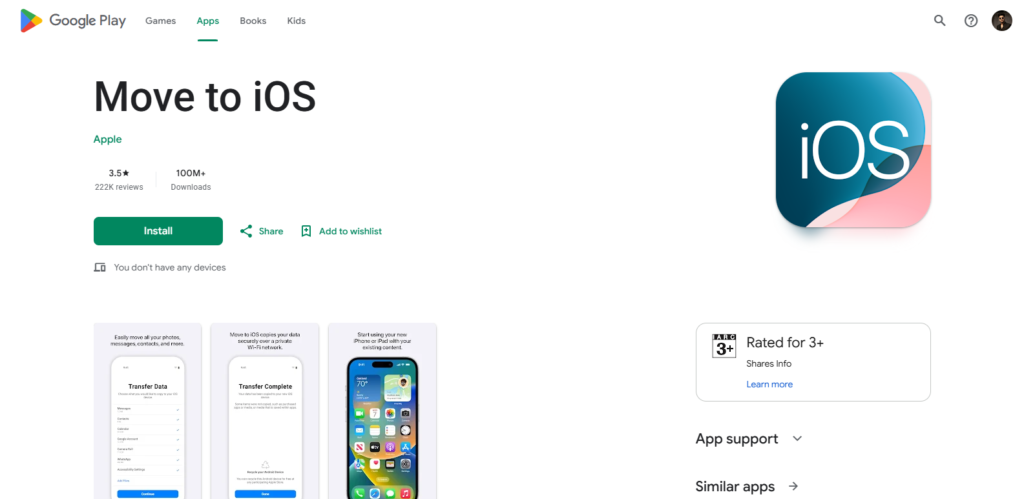
- Download Move to iOS on your Android phone before you even touch your new iPhone. It’s free on the Google Play Store.
- Start setting up your iPhone and keep going until you reach the “Apps & Data” screen, then tap Move Data from Android.
- Open Move to iOS on your Android device, accept the terms, and wait for a code to appear on your iPhone.
- Enter that code on your Android phone. The two devices create a private Wi-Fi connection between them — it still feels a little like magic every time I watch it happen.
- Choose what to transfer. Make sure Contacts is checked if your main goal is to move contacts to iPhone, along with anything else you want brought along.
- Wait it out. Depending on how much data you’re moving, this can take anywhere from a few minutes to over an hour. Don’t touch either phone until it says “Transfer Complete.”
One thing I learned the hard way on my second switch: this only works smoothly during the initial setup screen. If you’ve already finished setting up your iPhone, you’ll need to go to Settings > General > Transfer or Reset iPhone > Erase All Content and Settings to get back to that screen. Yes, that means wiping your new iPhone first — annoying, but it’s the only way to trigger it after the fact.
Quick 2026 note: Apple recently added a similar “place your phones together” transfer tool, but so far that one only runs in the iPhone-to-Android direction. For Android to iPhone, Move to iOS is still the one Apple wants you using.
Pros: Official, secure, and it transfers way more than just your contacts.
Cons: Both phones need to be near each other, on Wi-Fi, and plugged into power — and it really only works before you’ve finished setting up your iPhone.
Method 2 – Using Google Account Sync
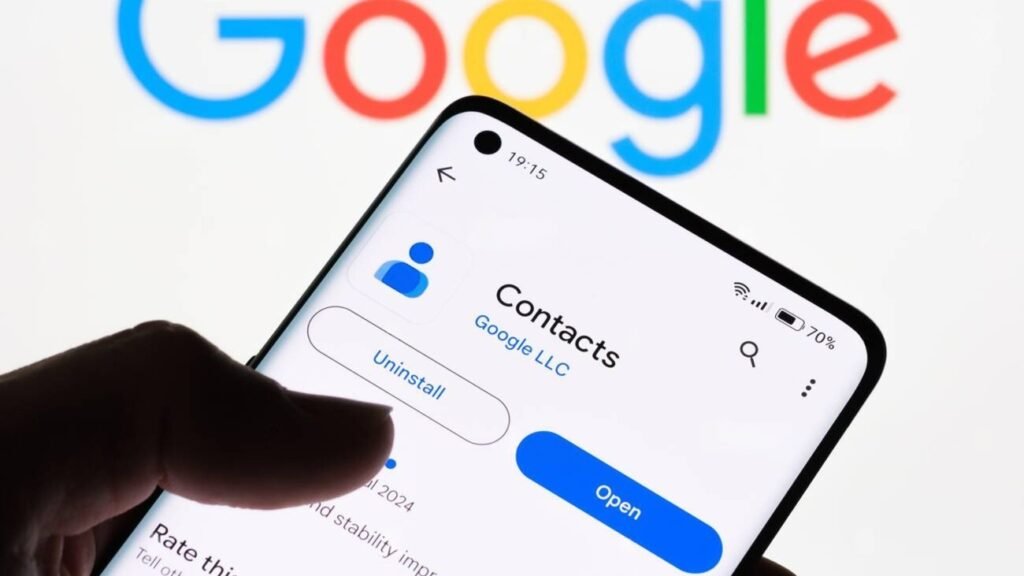
If Method 1 sounds like more commitment than you want, Google Account Sync is my answer to how to migrate Android contacts to iPhone without touching a single cable or resetting anything. It’s the one I recommend to anyone who’s already set up their iPhone and doesn’t want to erase it.
Here’s how to migrate contacts from Android to iPhone this way:
On your Android phone:
- Go to Settings > Accounts > Google.
- Tap your account, then tap Sync Contacts and make sure it’s switched on.
On your iPhone:
- Open Settings > Apps > Contacts.
- Tap Add Account, then choose Google.
- Sign in with the same Google account and turn the Contacts toggle on.
Give it a minute or two, open your iPhone’s Contacts app, and your Android contact list should be sitting right there.
Pros: No cables, no extra apps, and it keeps syncing automatically going forward, which I really appreciate months later.
Cons: You need a decent internet connection, and if your iPhone already had contacts saved locally, you might end up with duplicates — more on that in the mistakes section below.
Method 3 – Using a Computer (Manual Transfer)
This is the Android to iPhone contact transfer method I now run every single time as a backup, no matter which of the other methods I’ve already used. It’s the slowest answer to how to migrate Android contacts to iPhone, but it’s also the one that’s never once let me down.
Here’s the process:
- Go to contacts.google.com on a computer and sign in with the Google account tied to your Android phone.
- Click Export in the left sidebar, choose “vCard for iOS,” and select all your contacts.
- Save the .vcf file somewhere you’ll remember. I usually just drop it on my desktop.
- Go to iCloud.com/contacts on the same computer and sign in with your Apple ID.
- Click the settings icon in the bottom-left corner, choose “Import vCard,” and select the file you just saved.
Within a minute or two, your contacts appear on iCloud.com and sync straight down to your iPhone. If your contacts actually live in Microsoft Outlook instead of Google, the same trick works — just export a vCard or CSV from Outlook’s People app first.
Pros: Rock solid, no apps to install, and you’re left with a permanent backup file on your computer, which I love having around.
Cons: You need access to a computer, and it’s a few more clicks than the other methods.
Method 4 – Using Third-Party Apps
If neither phone wants to cooperate, and this happens more than you’d think, third-party apps are worth trying. I’ve used both Copy My Data and My Contacts Backup over the years, and while neither is perfect, they’ve bailed me out more than once.
My Contacts Backup is my last resort for how to migrate Android contacts to iPhone when Wi-Fi and account syncing both let me down, mostly because it doesn’t need both phones on at the same time. Here’s how I use it:
- Install My Contacts Backup on your Android phone. It’s also available on iPhone if you need it there too.
- Open the app and tap the backup button. It generates a .vcf file of your entire contact list.
- Email that file to yourself. No account or sign-in required.
- Open the email on your iPhone and tap the attachment. iOS will ask if you want to add the contacts — tap yes.
That’s it. Once you know the steps, it takes about two minutes.
Pros: Fast, doesn’t need both phones connected at once, and it works even on a shaky Wi-Fi connection.
Cons: Free versions sometimes carry ads, and you’re trusting your contact data to a third-party developer instead of Google or Apple directly.
Mistakes I Made When Migrating Contacts
I’ve made basically every mistake possible while figuring out how to migrate Android contacts to iPhone, so let me save you the trouble.

Mistake 1: Forgetting to back up first. On my very first switch, I jumped straight into Move to iOS without backing anything up. Halfway through, my Android phone’s battery died. I genuinely thought I’d lost everything for about ten terrifying minutes.
Mistake 2: Not checking for duplicates afterward. After running Google Sync on top of an iPhone that already had contacts saved, I ended up with two or three copies of the same person. My contact list looked like chaos for weeks before I finally cleaned it up.
Mistake 3: Losing contact photos. The vCard export method handles names and numbers fine, but I’ve noticed photos don’t always survive the trip. Now I sync through Google specifically because it tends to preserve photos more reliably.
Mistake 4: Assuming everything transferred. After my Pixel to iPhone switch, I didn’t realize about a dozen contacts were missing until I tried calling someone a week later. Always scroll through your full list and do a rough headcount before and after.
Mistake 5: Not cleaning up beforehand. I had years of duplicate, outdated, and flat-out irrelevant contacts sitting on my Android phone. Instead of spending twenty minutes tidying that up first, I migrated the entire mess straight over. Clean up before you migrate, not after — trust me on this one.
Every one of these mistakes taught me something different about how to migrate Android contacts to iPhone the right way, usually the hard way.
Frequently Asked Questions (FAQs)
How to migrate Android contacts to iPhone? The most complete answer to how to migrate Android contacts to iPhone is Apple’s Move to iOS app used during initial setup — it moves contacts alongside photos, messages, and more in one pass. If your iPhone is already set up, Google Account Sync or a manual vCard export are your better options.
How to migrate contacts from Android to iPhone? Pick based on your situation: Move to iOS for a brand-new iPhone, Google Account Sync if it’s already set up, or a manual computer transfer if you want a permanent backup file along the way. All three actually work — I’ve used each one multiple times.
Does Move to iOS transfer all contacts? In my experience, it transfers the vast majority, but I’ve had a small handful go missing on two separate occasions, usually contacts stored on the SIM card rather than in an account. I’d always recommend a quick count before and after, just to be safe.
Will I lose my contacts when switching to iPhone? Not if you back up first. This is honestly the single biggest thing I can tell you: back your contacts up to Google before touching anything else, and you’ve got a safety net no matter what goes sideways during the actual migration.
Can I transfer contacts without using iCloud? Yes. Both Move to iOS and Google Account Sync transfer contacts without ever touching iCloud. iCloud only comes into play if you’re using the manual vCard method through a computer.
How to transfer contacts from Android to iPhone without a computer? If you’re looking into how to migrate Android contacts to iPhone without a computer, Move to iOS and Google Account Sync both work entirely phone-to-phone. My Contacts Backup is another solid computer-free option since it just emails you a file directly.
Do I need to pay for third-party apps to transfer contacts? No. Move to iOS, Google Account Sync, and the free version of My Contacts Backup all cost nothing. I’ve only paid for a third-party app once in years of doing this, and looking back, it wasn’t necessary.
What if some contacts don’t transfer? Check your Android Contacts app and see where the missing ones are actually stored — sometimes it’s the SIM card, not your Google account, and account-based syncing won’t grab those. Manually re-adding a handful of stragglers is far faster than starting the whole migration over.
So, Which Method Should You Actually Use?
After going through how to migrate Android contacts to iPhone three separate times now, on three completely different Android phones, my honest recommendation is Google Account Sync for most people, with Move to iOS as the better call if you’re setting up a brand-new iPhone and want everything moved at once, not just contacts.
Neither method is flawless, and that’s really the point of this whole guide. I wanted to walk through this the way it actually happened for me, mistakes included, instead of pretending it’s a clean five-minute process. That’s really the honest version of how to migrate Android contacts to iPhone — not a perfectly smooth ordeal, but a completely manageable one once you know where the pitfalls are.
My one non-negotiable tip: always back up your contacts before you start, no matter which method you choose. It costs you five minutes and it’s saved me more than once.
Have you switched from Android to iPhone? Which method did you use, and did it go smoothly? Drop a comment below — I’d genuinely love to hear how your migration went.
Also, if you want to see which AI model gives better results with refined prompts, check out my full comparison on ChatGPT vs Claude Prompt Improver.
